Filters
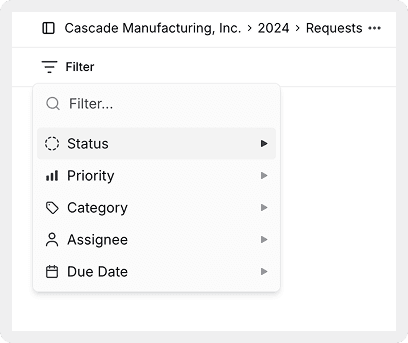
Apply advanced filtering by status, priority, category, assignee, and due date to focus on relevant requests.
Overview
The Filter feature provides advanced filtering capabilities to show only requests matching specific criteria. Apply multiple filters simultaneously to narrow down your view and focus on the most relevant requests.
Filters work across all view types (List, Board, Activity) and persist as you switch between views.
How to Filter Requests
Open the filter menu
Click the Filter button in the toolbar at the top of any view.
Select filter criteria
Choose from multiple filter categories to narrow your results. You can apply filters from one or more categories simultaneously.
View filtered results
Your request list updates to show only items matching all selected filters. The active filter count appears on the Filter button (e.g., "Filter (3)").
Clear filters
Click Clear or the X button in the filter menu to remove all active filters and see your full request list again.
Filter Categories
Status
Filter by workflow status to focus on requests at specific stages:
Backlog
Requests that haven't been started or prioritized yet.
To Do
Requests ready to be worked on or assigned.
Returned
Requests sent back for revisions or additional information.
In Review
Requests currently under review by the audit team.
Done
Completed requests that have been approved and closed.
Each status option shows the count of requests in that state (e.g., "To Do (15)").
Priority
Filter by request priority levels to focus on high-priority items:
| Priority | Description |
|---|---|
| Urgent | Requires immediate attention |
| High | Important and time-sensitive |
| Medium | Standard priority |
| Low | Can be addressed when time permits |
Category
Show only requests belonging to specific categories or audit areas:
Common categories:
- Revenue
- Operating Expenses
- Cash & Investments
- Accounts Receivable
- Accounts Payable
- Inventory
- Fixed Assets
Categories are customizable per engagement, so your available options may differ.
Assignee
Display requests assigned to specific team members:
- Filter by individual auditor names
- See unassigned requests
- View your own assignments
Use cases:
- Check what's assigned to you
- Review a team member's workload
- Find unassigned requests that need assignment
Due Date
Filter based on due date criteria:
Overdue
Requests past their due date that require immediate attention.
Due Today
Requests with today's date as the due date.
Due This Week
Requests due within the next 7 days.
No Due Date
Requests without a specified due date.
Multiple Filter Selection
You can apply filters from multiple categories simultaneously to create highly specific views:
Example combinations:
| Filter Combination | Use Case |
|---|---|
| Status: To Do + Priority: Urgent | Focus on urgent work that needs to start immediately |
| Category: Revenue + Status: In Review | Review all revenue requests currently under review |
| Assignee: Your Name + Status: Returned | See all requests returned to you for revisions |
| Due Date: Overdue + Priority: High | Prioritize overdue high-priority items |
When multiple filters are applied, only requests matching all filter criteria will appear (AND logic, not OR).
Quick Filters
In addition to the main Filter menu, quick filter tabs appear below the toolbar in List and Board views:
Due Date Tab
Quick access to filter by Overdue, No Due Date, and Done with percentage indicators.
Category Tab
One-click filtering by category with request counts.
Priority Tab
Instant filtering by priority level.
Assignee Tab
Group and filter by team member assignments.
Quick filters work alongside the full Filter menu and can be used together for faster filtering.
Searching Within Filters
Use the Filter... search box at the top of the filter menu to quickly find specific filter options:
- Type to search across all filter categories
- Useful when you have many categories or team members
- Narrows the filter menu to matching options only
Filter Tips
Filter vs. Search
When to use Filters:
- You want to see all requests with specific properties
- You're working with categories, statuses, or priorities
- You need to narrow by date ranges or assignments
- You want to maintain a filtered view for extended work sessions
When to use Search:
- You know the request name or ID
- You want immediate, fast results
- You're looking for a specific item, not a group
Filters and Search work together. Apply filters to narrow by properties, then search within those results for specific requests.
Managing Active Filters
Viewing active filters:
- The Filter button shows the count of active filters (e.g., "Filter (2)")
- Open the filter menu to see which specific filters are applied
Removing filters:
- Click Clear in the filter menu to remove all filters at once
- Uncheck specific filter options to remove them individually
Filter persistence:
- Filters remain active as you switch between List, Board, and Activity views
- Filters persist during your session but reset when you close and reopen the engagement
Filter settings are per-engagement and don't affect other engagements or other team members' views.
How is this guide?