Search
Quickly find specific requests by name, ID, or keywords with real-time filtering.
Overview
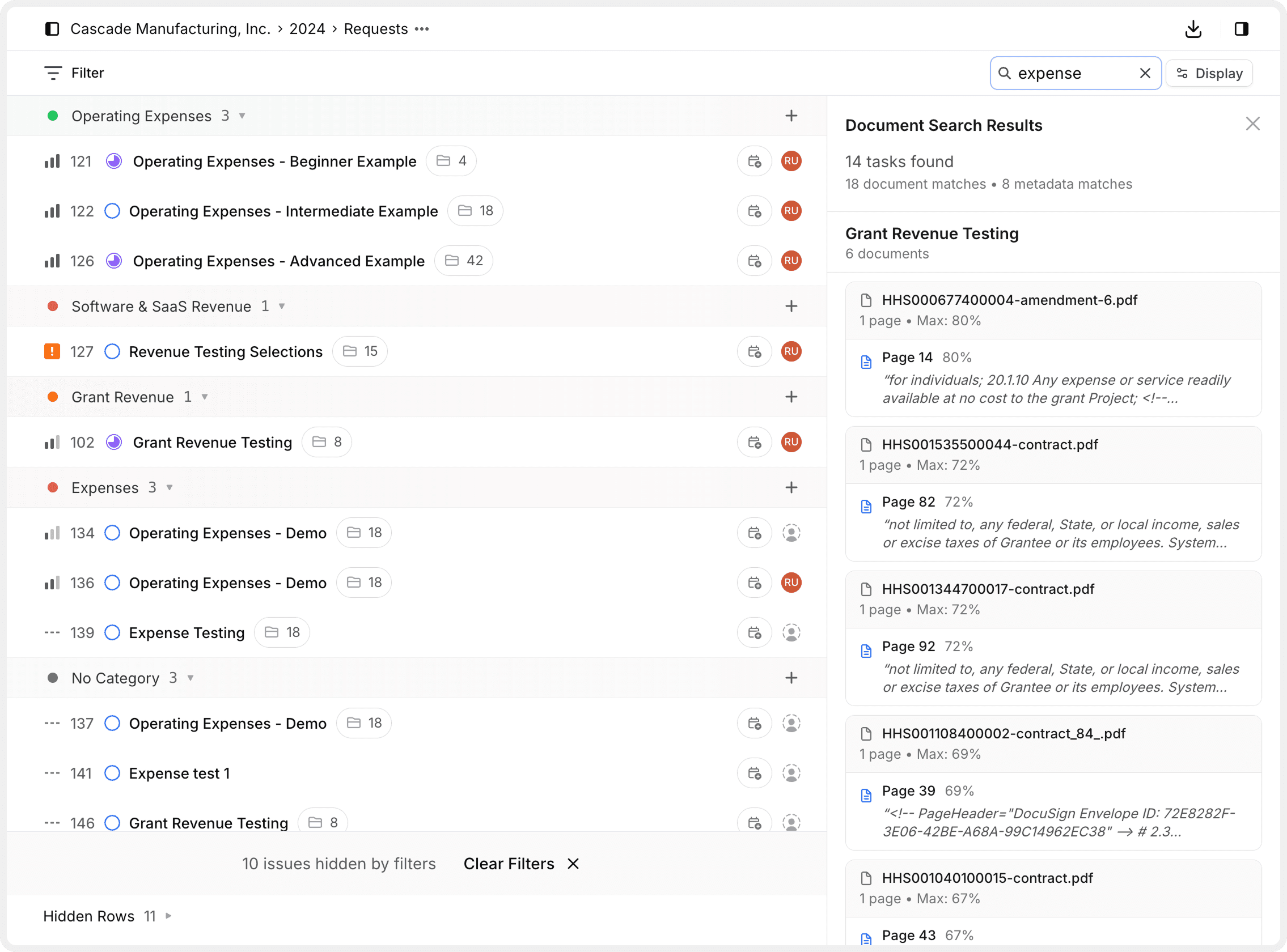
The Search feature allows you to quickly find specific requests by typing request names, IDs, or keywords. Search filters your request list in real-time as you type, helping you locate what you need without navigating through multiple pages or filters.
Search works across all view types (List, Board, Activity) and complements other filtering options.
How to Search
Open the search field
Click the Search button or magnifying glass icon in the toolbar at the top of any view.
Enter search terms
Type request names, IDs, or keywords into the search field. The search is case-insensitive and matches partial text.
What you can search for:
- Request titles or names
- Request IDs (numeric identifiers)
- Keywords in request descriptions
- Category names
- Assignee names
View filtered results
The request list updates in real-time as you type, showing only requests that match your search terms. The search filters across all visible requests in your current view.
Clear search
Click the X icon in the search field or delete all text to clear the search and return to your full request list.
Search Behavior
Real-time filtering
Results update instantly as you type, providing immediate feedback.
Partial matching
Search matches partial text, so typing "revenue" finds "Revenue Testing" and "Software Revenue".
Case-insensitive
Search ignores capitalization, so "Revenue" and "revenue" produce the same results.
Works with filters
Search combines with active filters to further narrow your results.
Search Tips
Use search for quick lookups: When you know part of a request name or ID, search is the fastest way to find it.
Best practices:
- Search by ID for exact matches: Type the numeric ID to jump directly to a specific request
- Use partial names when you're unsure of the exact title
- Combine with filters to narrow results further (e.g., search "revenue" + filter by "Overdue")
- Clear search regularly to avoid confusion about why requests aren't showing
Common Use Cases
| Use Case | Search Strategy |
|---|---|
| Find a specific request by ID | Type the exact request ID number |
| Locate all revenue-related requests | Search "revenue" to match all titles containing that word |
| Find requests assigned to a person | Search their name or use the Assignee filter instead |
| Quick check if a request exists | Start typing the expected name and see if it appears |
Keyboard Shortcuts
Open search
Use your browser's standard keyboard shortcuts or click the magnifying glass icon.
Clear search
Press Esc while focused in the search field to clear it quickly.
Search results persist as you switch between List, Board, and Activity views, maintaining your search context.
Search vs. Filters
When to use Search:
- You know part of the request name or ID
- You want quick, immediate results
- You're looking for a specific item
When to use Filters:
- You want to narrow by specific properties (status, priority, due date)
- You need to see all requests matching multiple criteria
- You want to save a filtered view for repeated use
Search and Filters work together. Use search to quickly narrow results, then apply filters for more precise control.
How is this guide?