Templates
Select, review, and apply pre-built task templates to create standardized workflows quickly.
Create a template
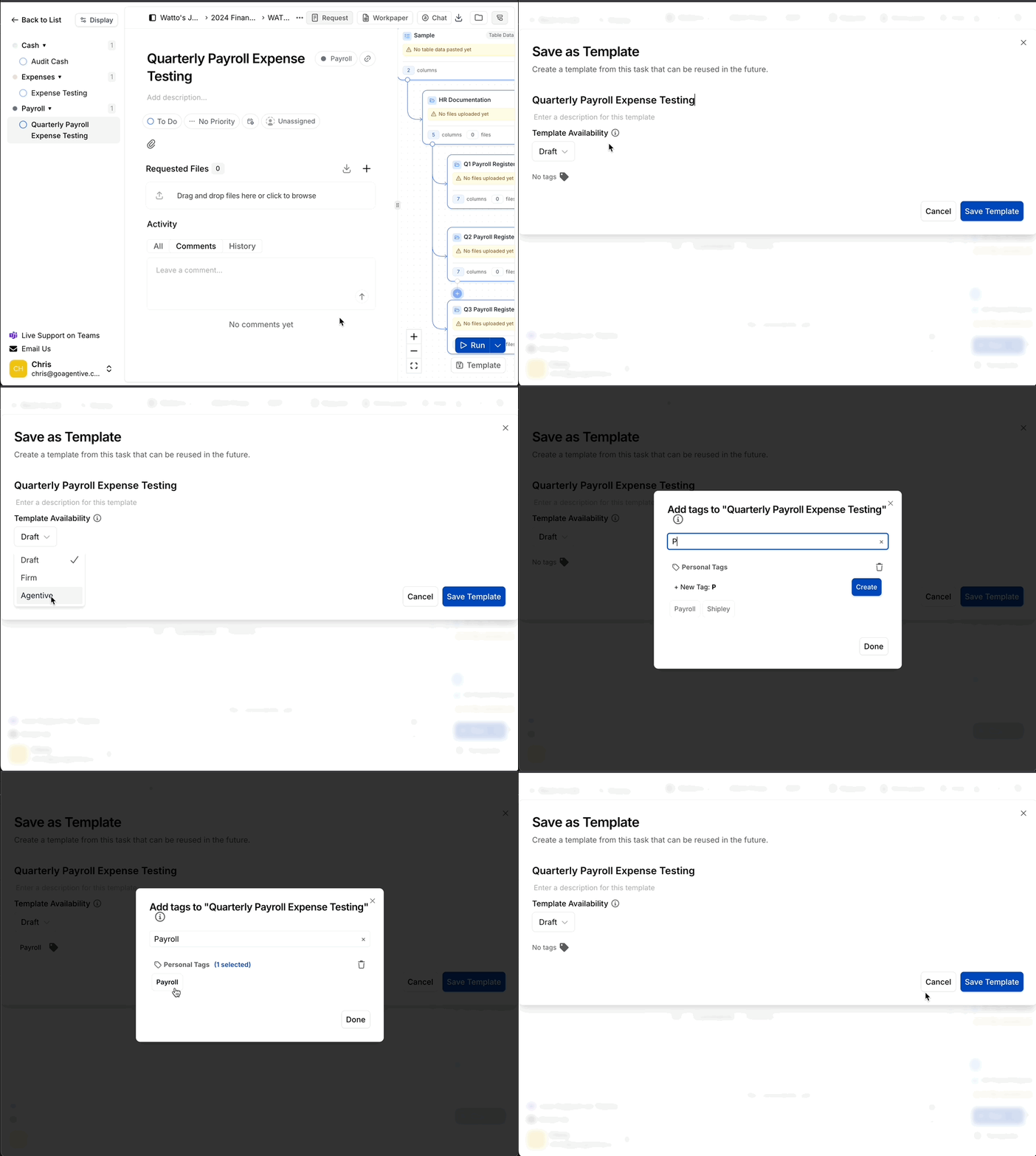
Initiate template creation
- Navigate to the bottom-right corner of the workspace screen
- Click the Save as Template button located directly below the Run button
- The template configuration dialog opens
Only save workflows as templates once you've tested and verified they work correctly for at least one engagement.
Define template identity
Name and description
- Enter a unique name in the Template Name field
- Use clear, descriptive names (e.g., "Revenue Recognition Testing - ASC 606")
- Include the audit area or standard when relevant
- Provide a brief overview in the Description field
- Explain the template's purpose
- Note specific document groups or test types included
- Mention any prerequisites or data requirements
Good descriptions help teammates quickly determine if a template fits their needs without opening it.
Set access level
Select Template Availability to control who can use the template:
Draft
Restricts access to yourself only. Use while developing or testing the template.
Firm
Shares with everyone in your organization. Best for standardized firm procedures.
Agentive
Makes the template available to all Agentive users platform-wide. Use for industry-standard procedures.
Start with Draft mode if the template is still in development or specific to your personal workflow.
Organize with tags
Tags make templates easier to find and filter.
- Click the No tags icon to open the tagging menu
- Enter a new tag name or select from Global Tags
- Common tag examples:
- Audit standards:
ASC 842,ASC 606,GAAP,IFRS - Audit areas:
Revenue,Cash,Inventory,Payroll - Use cases:
Training,Complex,Recurring
- Audit standards:
- Click Create for new tags or select existing ones
- Click Done to apply the tags
Use consistent tagging conventions across your firm to make template discovery easier.
Save the template
- Review your template name, description, availability, and tags
- Click to finalize
- The template is now available in the template library
Your template appears in the library immediately and can be applied to new requests right away.
Applying templates
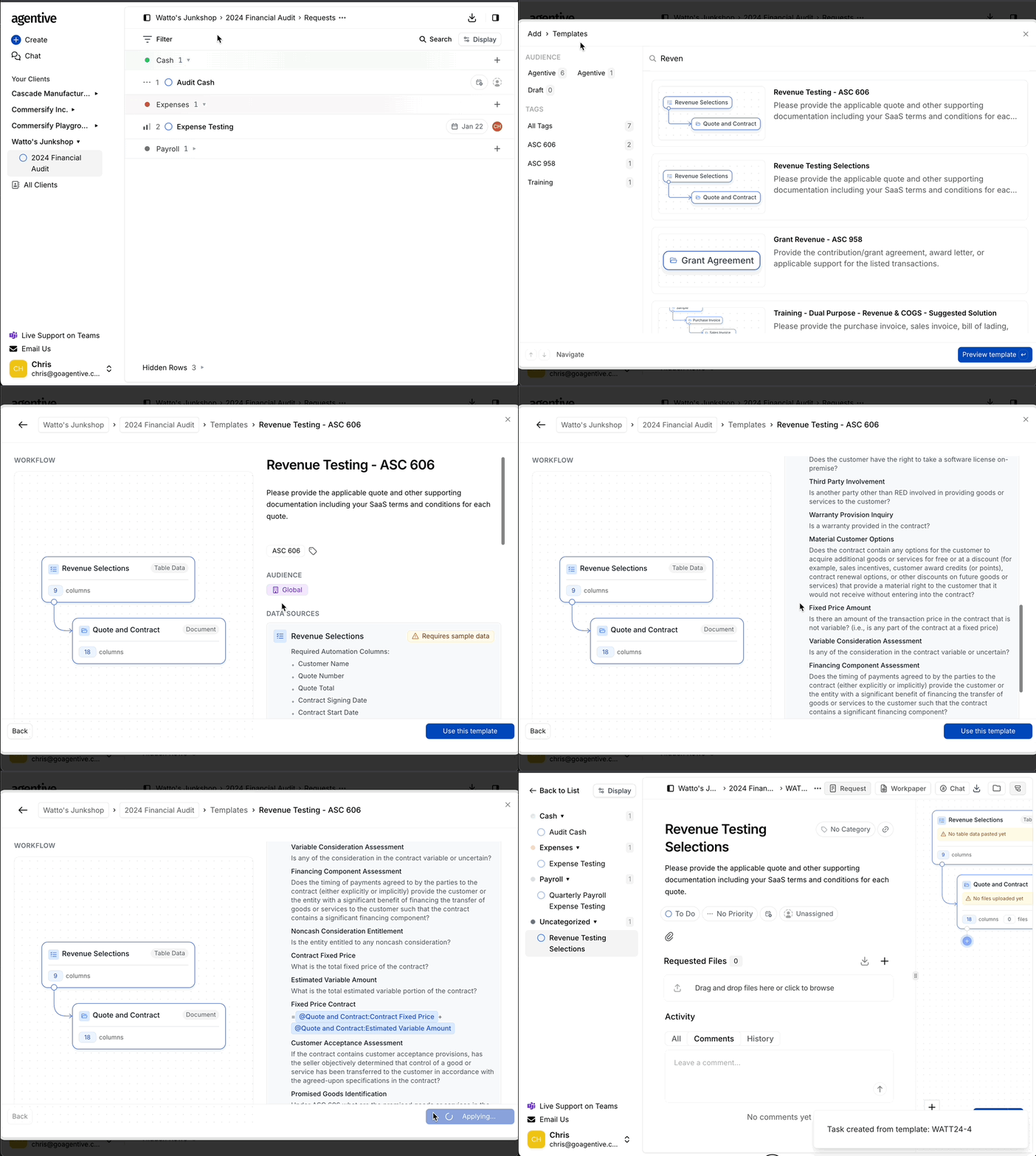
Open new request dialog
- Navigate to the top-left corner of the interface
- Click the plus sign (+) located next to the firm logo
You can also access templates from within an engagement by clicking New Request on the engagement board.
Browse available templates
The template library displays:
- Template name and description
- Tags for categorization (e.g.,
ASC 842,Training,Revenue) - Audience indicator (Agentive, Firm, or Draft)
- Preview of included document groups
Recently created templates appear at the top for quick access to your latest work.
Search and filter templates
Find the right template quickly using search and filtering tools.
Search by keyword
Use the search bar
- Locate the search field at the top of the template library
- Enter keywords from template titles, tags, or descriptions
- Results update dynamically as you type
Search strategies
Search by audit area:
- "Revenue", "Cash", "Inventory", "Payroll"
Search by standard:
- "ASC 606", "ASC 842", "GAAP", "IFRS"
Search by procedure:
- "Bank confirmation", "Accounts payable", "Lease testing"
Search looks across template names, descriptions, and tags to find the best matches.
Filter by template source
Select an Audience category to view templates by visibility:
Agentive
Platform-wide templates created by Agentive and the community. Use for industry-standard procedures.
Firm
Templates shared across your organization. These represent your firm's standardized procedures.
Draft
Your personal templates still in development. Only visible to you until you promote them to Firm or Agentive.
Firm templates should be your first choice—they reflect your organization's tested procedures and preferences.
Apply and customize templates
Initialize the task
- Review the template details one final time
- Click in the bottom-right corner
The request composer loads with all template defaults—document groups, prompts, formulas, and validation rules.
Customize for the client
Adjust the template to fit client-specific requirements:
Modify request properties
Update basic request information:
- Title – Make it client-specific (e.g., "Revenue Testing - Acme Corp Q4 2024")
- Description – Add client context or special instructions
- Category – Assign to the appropriate audit area
- Due date – Set based on engagement timeline
- Assignee – Assign to the responsible auditor
Customizing the title and description helps clients understand exactly what you need from them.
Adjust document structure
Modify document groups as needed:
- Add or remove document groups for client-specific requirements
- Rename folders to match client terminology
- Adjust upload instructions for clarity
- Update folder structure (Current Year vs Prior Year)
Changes to document groups in this request do NOT affect the original template—customize freely.
Refine automation settings
Fine-tune AI and validation:
- Edit AI prompts for client-specific data points
- Adjust validation criteria for unique circumstances
- Modify formula calculations if needed
- Update matching rules to align with client data format
Templates provide working automation as a baseline—tweak as needed without starting from scratch.
Best practices
Preview before applying
Always review workflow diagrams, data requirements, and prompts before clicking Use this template.
Prepare data first
Upload and format your sample data before applying templates that depend on specific column structures.
Test with sample data
Apply templates to a test engagement first to verify they work as expected with your data format.
Customize descriptions
Always update request descriptions to be client-specific rather than keeping generic template text.
Save successful variations
When modifications work well, save them as new templates for future use.
Document changes
Add notes explaining any significant changes from the original template for future reference.
How is this guide?