Excel import
Bulk-import requests with our Excel import template.
Overview
Importing a request list from Excel lets you get an engagement created quickly, especially when migrating from a legacy request list platform.
Click create in the agentive sidebar to open the create request window. From there, select "Import from Excel" to get started.
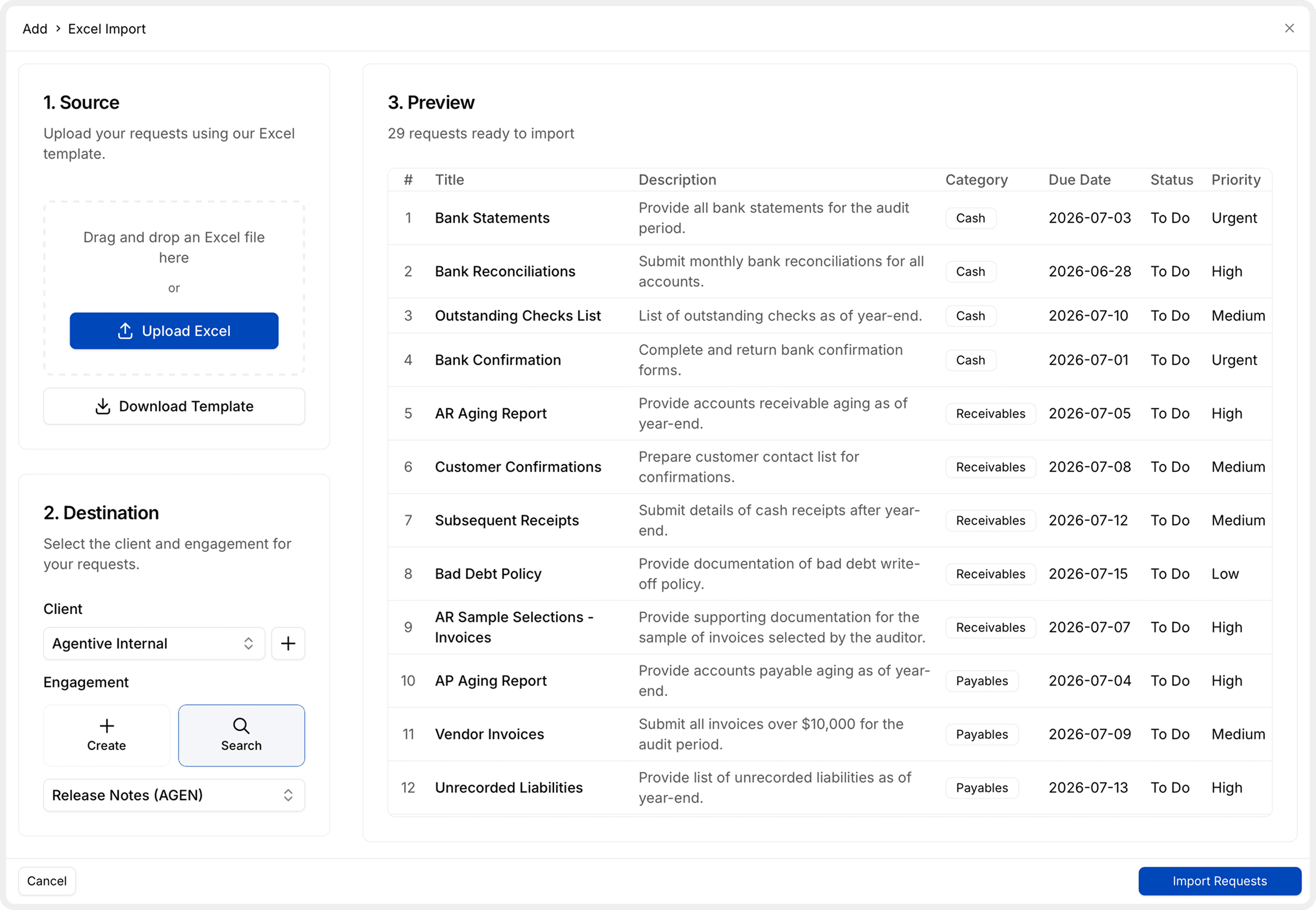
Use the 3-step wizard to upload your Excel file, select a destination, and preview requests before importing.
Use Excel import when setting up large engagements (10+ requests), migrating from legacy platforms, or when you have request details in spreadsheet format.
Import workflow
Upload your Excel file
Download the template
- Click Download Template to get the official
Agentive_Request_List_Template.xlsxfile. - Keep the template structure intact—do not rename or remove columns.
Upload methods
Choose how you want to provide your Excel file:
Drag and drop
Drag your completed Excel file into the upload area.
Upload button
Click Upload Excel to browse your files. Select your completed template and click Open.
Supported formats: .xlsx and .xls
Select destination
Choose where your imported requests should be created.
Select client organization
- Choose an existing client from the dropdown.
- Or click + Create New Client to add a new organization.
If you just created a new client, it will automatically be selected. If the client has no engagements, the form switches to "create new engagement" mode.
Select or create engagement
Use existing engagement
- Select an engagement from the dropdown.
- All requests will be added to this engagement.
Create new engagement
- Toggle Create New Engagement.
- Enter the engagement details:
- Engagement Name – Clear, descriptive title
- Short Identifier – Unique 4-6 character code (auto-generated)
- Audit Period Start – Beginning date of the audit period
- Audit Period End – End date of the audit period
- The system checks if the identifier is already taken and warns you if it exists.
The short identifier must be unique within the client organization. The system auto-generates a suggestion based on the client name.
Preview and import
Review all requests before creating them in your engagement.
Preview table
The Excel template includes these columns:
| Column | Required | Description |
|---|---|---|
| Title | Yes | Clear, descriptive request name |
| Description | No | Detailed requirements and context |
| Category | No | Audit area (Revenue, Cash, A/R, etc.) |
| Priority | No | Urgency level (Urgent, High, Medium, Low) |
| Assignee | No | Team member email address |
| Due Date | No | Target completion date |
Title is the only required field. Rows without a title are ignored during import. All other fields are optional.
Import requests
- Review the preview: [X] requests ready to import
- Verify the destination client and engagement are correct.
- Click Import Requests to create all requests at once.
- After import completes, you're automatically redirected to the engagement board.
Common issues and solutions
Best practices
After import
- Imported requests appear on the engagement board immediately
- All requests start with "To Do" status
- You're automatically redirected to view the engagement
- Review and adjust any properties that need refinement
- Add additional context, attachments, or instructions to individual requests
The system displays a success message showing how many requests were imported: [X] request(s) imported
How is this guide?