Roll Forward
Roll forward engagements to a new period or client to reuse established workflows and tasks efficiently.
Roll forward audit engagements to reuse established workflows and tasks rather than starting from scratch.
Rolling forward copies engagement structure, categories, requests, and workflows to a new period while leaving historical data in the source engagement.
Access roll forward
Method 1: Engagement context menu
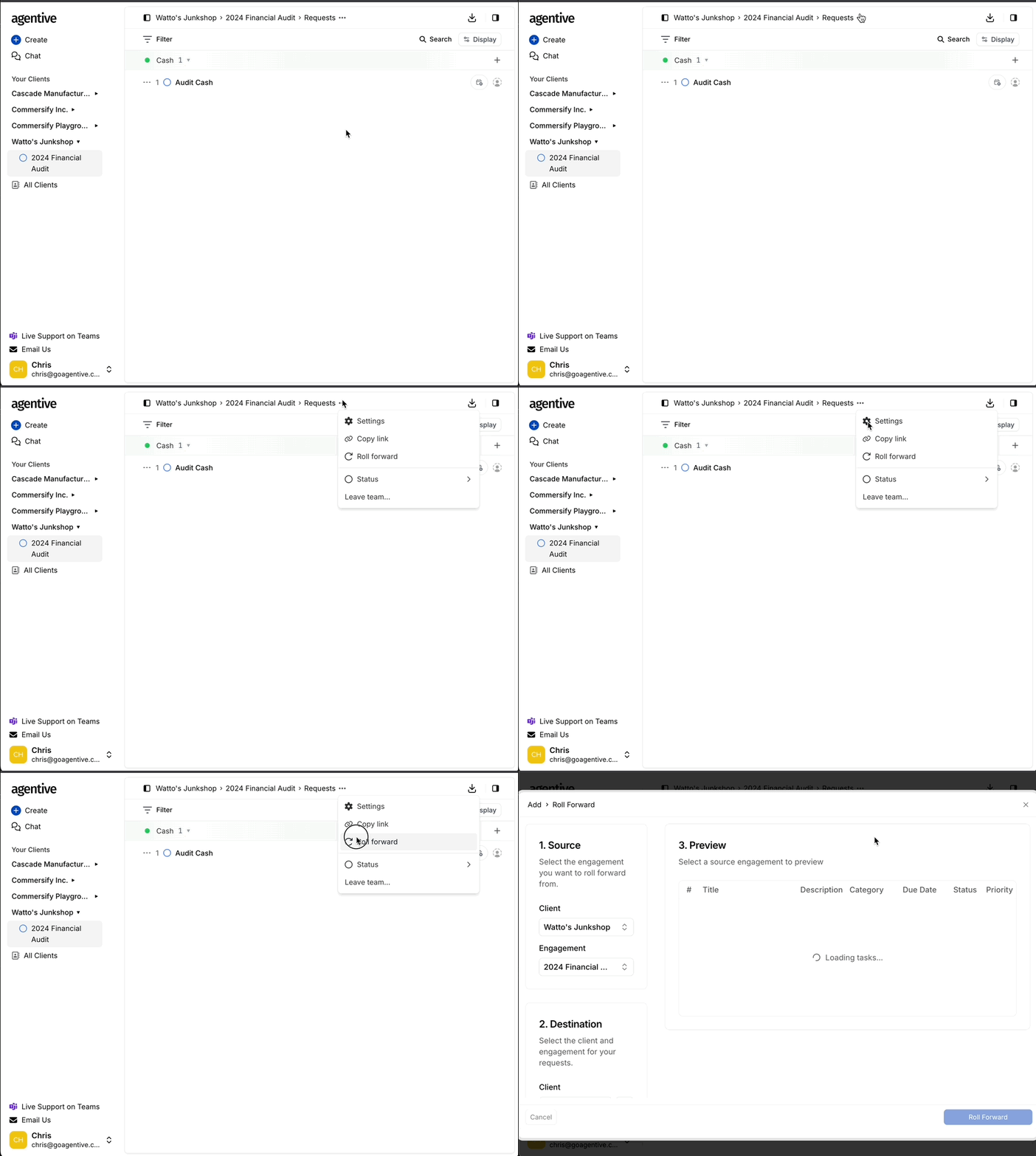
Locate engagement options
- Find the navigation bar at the top displaying Client Name and Engagement
- Click the icon
- Select Roll Forward from the dropdown
Opens roll forward dialog
The roll forward configuration screen appears with source engagement pre-selected.
This method is fastest when you're already working within the engagement you want to roll forward.
Method 2: Global add menu
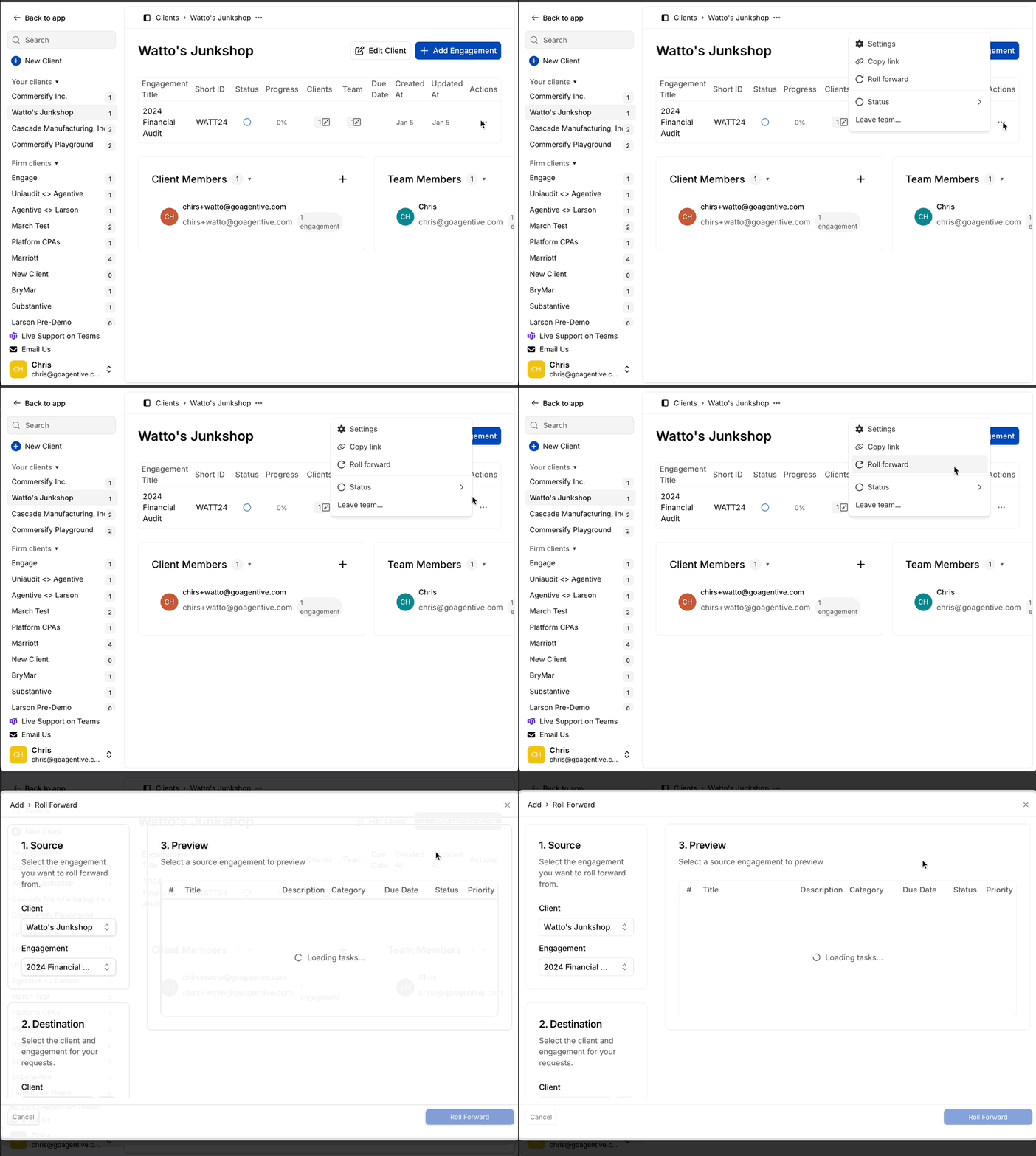
Open global actions
- Navigate to the + icon to the right of the firm's logo
- Select Roll Forward an Engagement from the list
Select source engagement
Choose which engagement to roll forward from the dropdown list.
Use this method when starting fresh or rolling forward from a different engagement than the one currently open.
Configure Rollforward
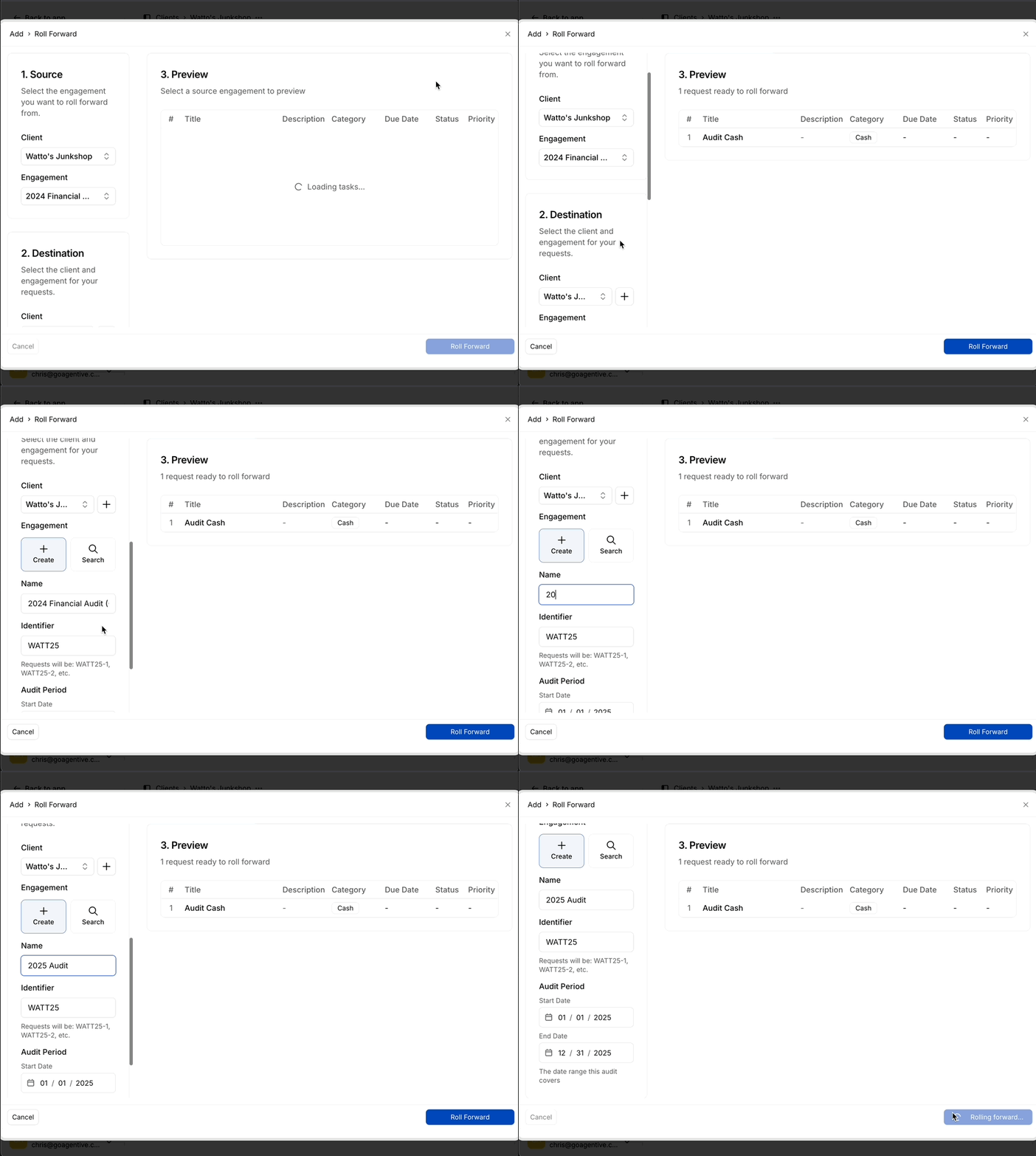
Review source engagement
Confirm the selected Client and Engagement under the Source section.
Roll forward the engagement before completing the archive process or deleting the current audit. Archived engagements can still be rolled forward.
Select destination client
Under the Destination section, select the target Client from the dropdown menu.
Same client
Roll forward to the same client for recurring annual audits or periodic reviews.
Different client
Roll forward to a similar client to use as a jumping-off point for similar workflows.
Rolling forward to a different client is useful for standardizing procedures across similar engagements.
Define engagement identity
- Enter the new engagement Name (e.g.,
Financial Statement Audit 2026) - Enter the Identifier (short code that prefixes all request numbers)
The identifier must be unique within the destination client. The system suggests one based on the pattern from the source.
Set audit period
Click the Calendar icons under Audit Period to define:
- Start date – When the new audit period begins
- End date – When the new audit period ends
The audit period helps date-sensitive automations and formulas calculate correctly for the new engagement.
Preview and create
Review preview pane
The Preview section shows:
- Number of requests being copied
- Number of categories being copied
- Number of workflows and automations being copied
- Team member assignments (if any)
Team member assignments are NOT copied by default. You'll need to re-assign auditors and client contacts in the new engagement.
Roll Forward the Engagement
Click to roll forward the engagement with all copied elements.
The system creates the new engagement and opens it automatically. You can start configuring immediately.
What rolls forward
Elements copied in roll forward
Engagement structure
- Categories
- Custom variables
- Status workflow settings
- Board configurations
Requests and tasks
- All request titles and descriptions
- Request properties (priority, category, etc.)
- Internal tasks
- Request workflows
Workpaper templates
- Table structures
- Document group configurations
- AI prompt definitions
- Formula columns
- Matching rules
Automation settings
- Validation rules
- Deep Analysis questions
- Custom column definitions
All structural and configuration elements copy over, giving you a complete framework to start the new engagement.
Elements NOT copied
Historical data
- Uploaded documents
- File attachments
- Supporting evidence
- Previous year workpapers
Activity and comments
- Request comments and discussions
- Activity history
- Status change logs
- Audit trail
Team assignments
- Auditor assignments
- Client contact assignments
- Lead roles
Execution results
- AI prompt responses
- Formula calculation results
- Document matching results
- Validation outcomes
Historical data remains in the source engagement for compliance and reference. You start with a clean slate for new evidence.
Best practices
Roll forward before archiving
Roll forward while the source engagement is still fresh in your team's mind to identify improvements.
Clean up before rolling forward
Remove outdated or one-time requests from the source engagement before rolling forward for a cleaner result.
Document changes
Use engagement comments to note what was modified after rolling forward for future reference.
Test automations
Run a sample automation test after rolling forward to confirm formulas and prompts work as expected.
Troubleshooting
If roll forward fails:
- Verify you have permission to create engagements for the destination client
- Check that the identifier you chose doesn't already exist
- Ensure the source engagement isn't in a transitional state (being deleted, etc.)
- Try refreshing the page and attempting the roll forward again
Related guides
Creating Clients & Engagements
Learn how to create new clients and engagements from scratch.
Editing Engagements
Update engagement settings, categories, and team assignments.
Engagement Status
Understand the full engagement lifecycle and status transitions.
How is this guide?