Create Requests
Plan, assign, and track evidence collection with structured requests that align your team and clients on every deliverable.
Requests capture what you need from clients or internal teammates with clear titles, descriptions, status, due dates, and assignees.
Create a request
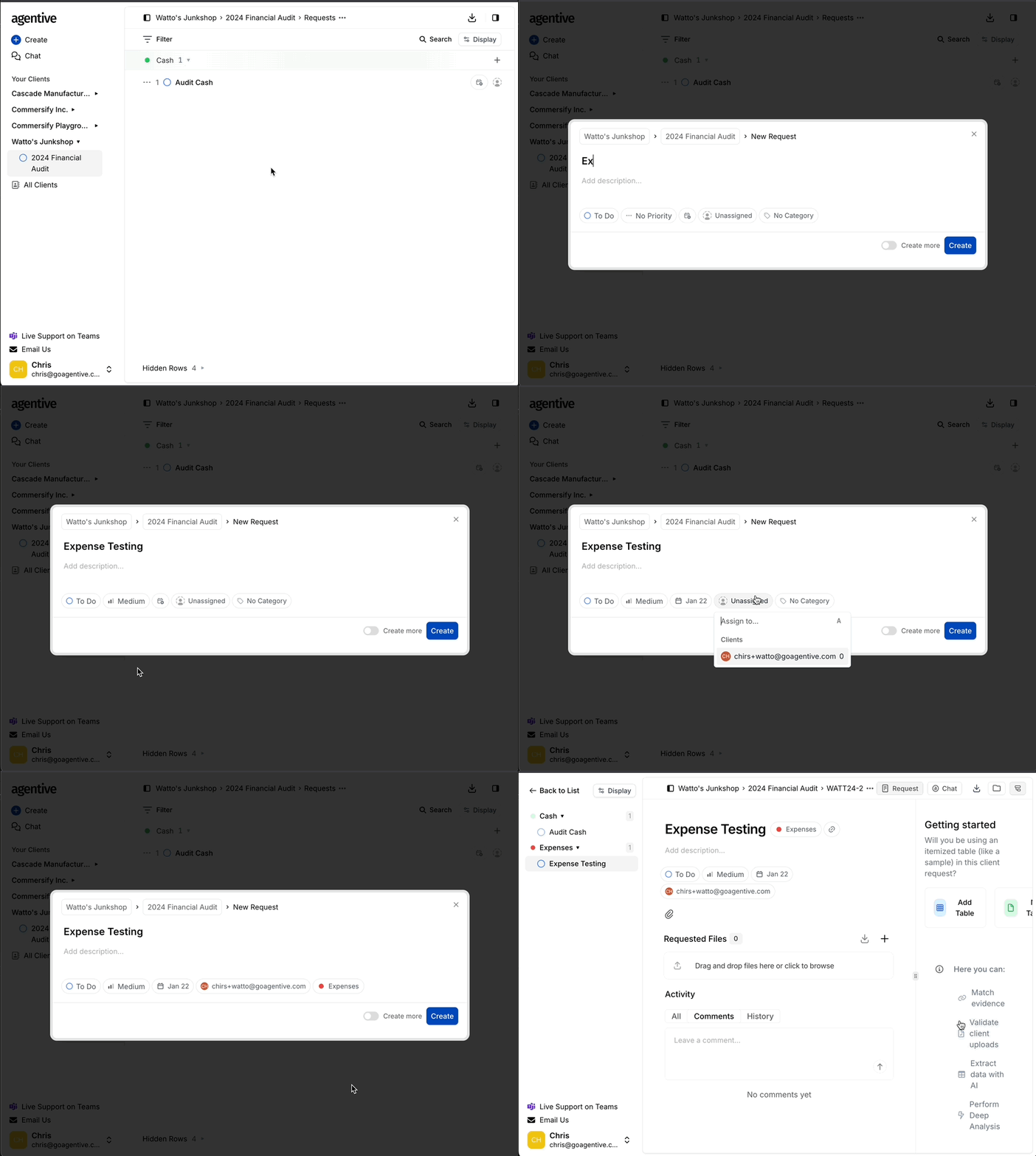
Create the new request
When inside an Engagement select the + Create button in the left side
Add the details
Define the request specifics:
Title (Required)
Write a clear title for your request
Description (Optional)
Write a clear title and detailed description. Use bullet points or checklists when helpful.
Status (Optional)
Set the status of the task (default is To Do).
Priority (Optional)
Set the priority for the task (low, medium, high, urgent).
Due Date (Optional)
Set the due date for the request.
Client assignment (Optional)
Assign a client contact if you want to track who is responsible on their side. They will be notified of their new assignment.
Category (Optional)
Categories help organize requests by audit area (Cash, Revenue, Payroll, etc.) and make filtering easier.
Enable Create another to keep the composer open for the next request—perfect for bulk request creation.
Save and send
- Click to save your changes
- The new request appears on the engagement board and opens automatically
After creation
Once your request is created, you can manage it throughout the engagement lifecycle.
Track progress
Monitor request status from the engagement board or request overview page.
Edit anytime
Update titles, descriptions, or properties—changes sync instantly for clients and auditors.
Expand scope
Add related document groups or workpapers as your requirements evolve.
Archive completed work
Mark requests complete to keep active boards focused on pending items.
All changes to requests are tracked in the activity feed, creating an audit trail of modifications.
Manage supporting context
Add reference materials
Upload context files
- Navigate to the Files section within the request
- Drag and drop additional reference documents
- Add notes explaining how these files relate to the request
Link document groups
- Review linked document groups
- Adjust settings for automatic matching or validation
- Add new document groups if the scope expands
Track conversations
The activity feed shows:
- When files were uploaded
- Status changes and reassignments
- Comments from auditors and clients
- System-generated validation alerts
Reply inline
Respond to comments directly in the feed to keep discussions organized.
@ mentions
Tag teammates to notify them about specific questions or updates.
Filter by type
View only comments, only uploads, or all activity.
Export history
Download the full activity log for documentation purposes.
Clients see only comments and activity from team members who have shared access to the request.
Best practices
Write clear descriptions
Include specific file types, date ranges, and format requirements to avoid back-and-forth.
Set realistic due dates
Allow clients adequate time to gather evidence while keeping the engagement on track.
Use categories consistently
Standardize category names across engagements for easier reporting and filtering.
Assign ownership
Always designate an auditor and (when applicable) a client contact for accountability.
How is this guide?