Board
Kanban-style board layout for visual workflow management with drag-and-drop functionality.
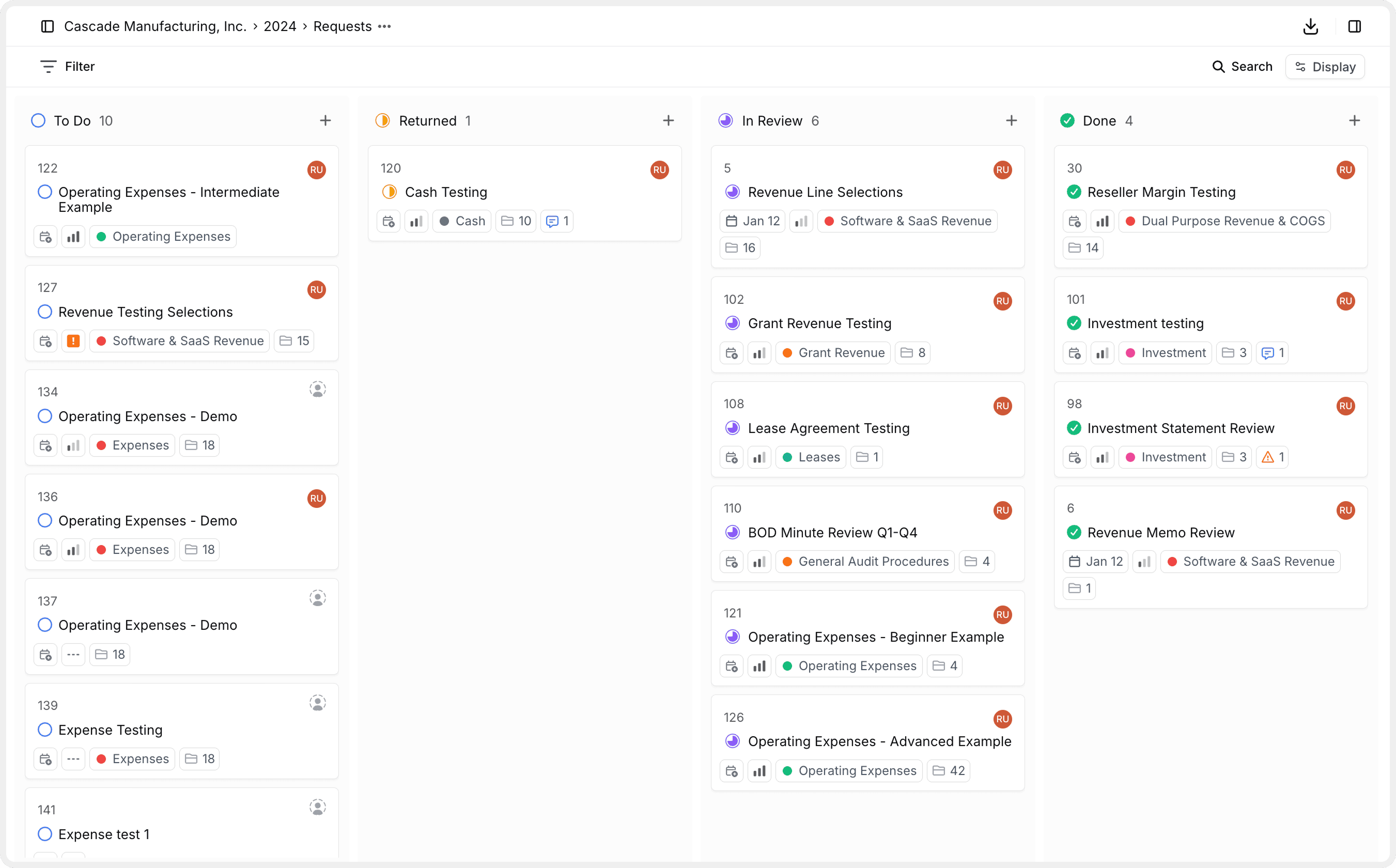
Overview
The Board View provides a visual, Kanban-style layout for managing your audit requests. Requests appear as cards organized into columns, making it easy to see workflow status at a glance and move requests through your audit process with drag-and-drop.
Board View is perfect for visual workflow management, daily standups, and tracking requests as they move through different stages.
When to Use Board View
Visual workflow management
See the entire workflow at a glance with columns representing different stages.
Drag-and-drop updates
Quickly move requests between stages by dragging cards to different columns.
Team standup meetings
Visually review what's in progress, what's blocked, and what's completed.
Workflow bottlenecks
Identify bottlenecks by seeing which columns have too many requests.
Finding and Filtering
Board View works with all of Agentive's search and filter tools:
Search
Quickly find specific requests by name, ID, or keywords.
Filters
Apply advanced filtering by status, priority, category, and more.
Display Options
Customize grouping, sorting, and card display options.
Board Structure
Columns
Columns represent the grouping you've selected in Display Options. By default, columns represent workflow Status:
Backlog
Requests that haven't been started or prioritized yet.
To Do
Requests ready to be worked on or assigned.
Returned
Requests sent back for revisions or additional information.
In Review
Requests currently under review by the audit team.
Done
Completed requests that have been approved and closed.
Change column grouping in Display Options. You can group by Status, Category, Priority, Assignee, or Due Date.
Column Headers
Each column header displays:
- Column name — The status, category, or other grouping name
- Request count — Number of requests in that column (e.g., "15")
- Add button — Plus icon (+) to create new requests within that column
Request Cards
Each request appears as a card within a column. Cards provide a snapshot of key request information:
| Element | Description |
|---|---|
| Request ID | Numeric identifier in the top left (e.g., #127) |
| Title | Full request name |
| Priority indicator | Color-coded icon (red = urgent, orange = high, etc.) |
| Due date | Calendar icon with date |
| Comment count | Envelope icon with number of comments |
| File count | Paperclip icon with number of attached files |
| Assignee | Team member avatar at the bottom |
| Category label | Colored tag showing the audit area |
Card information is optimized for quick scanning. You can see request priorities, deadlines, and ownership at a glance.
Drag-and-Drop
The power of Board View comes from its intuitive drag-and-drop functionality.
Click and hold a card
Click on any request card and hold the mouse button down.
Drag to the target column
Drag the card horizontally to the column where you want it to move.
Position within the column
As you drag, you can also position the card vertically within the column to set its order.
Drop the card
Release the mouse button to drop the card in its new location. The request's status (or other property) updates automatically.
When you drag a card to a new column, the request's property for that grouping automatically updates. For example, dragging from "To Do" to "In Review" changes the status to "In Review".
Drag-and-Drop Tips
Working with Cards
Opening Request Details
Click a card
Click anywhere on a request card to open the request detail panel.
Review and edit
The detail panel shows all request information, comments, files, and history. Make any necessary edits.
Close the panel
Click outside the panel or press Esc to close it and return to the board view.
Creating New Requests
Create requests directly within a specific column:
- Click the + button in a column header
- Enter the request details in the form
- The new request automatically inherits the column's property (e.g., status, category)
- The card appears in that column immediately
Creating requests within columns is faster than creating them elsewhere and manually assigning properties.
Card Actions
Hover over a card to reveal quick action buttons:
Edit
Pencil icon to edit request details quickly.
Assign
Person icon to change the assignee.
Priority
Flag icon to update priority level.
More actions
Three-dot menu for additional options (archive, duplicate, delete).
Grouping Options
While Status is the default grouping, you can group the board by other properties:
| Grouping | Columns Show | Best For |
|---|---|---|
| Status | Workflow stages (default) | Visual workflow management |
| Category | Audit areas | Organizing work by functional area |
| Priority | Urgency levels | Prioritizing critical work |
| Assignee | Team members | Team coordination and workload balancing |
| Due Date | Date ranges | Deadline management |
Change grouping in Display Options based on your current focus. The board reconfigures instantly.
Sorting Within Columns
Control how cards are ordered within each column:
Manual
Drag cards to your preferred order within each column.
Automatic
Sort by Priority, Due Date, Created date, or other properties.
Setting sort order:
- Open Display Options
- Find the Ordering setting
- Choose your preferred sort method
- Cards automatically arrange according to your selection
Quick Filter Tabs
Located below the toolbar, quick filter tabs provide instant filtering:
Due Date
Filter by Overdue, No Due Date, or Done with visual indicators.
Category
One-click filtering by audit area with request counts.
Priority
Filter by Urgent, High, Medium, or Low priority.
Assignee
Filter by team member to see individual workloads.
Quick filters update the board in real-time, hiding cards that don't match the selected criteria.
Workflow Management
Identifying Bottlenecks
Use Board View to spot workflow bottlenecks:
Signs of bottlenecks:
- One column has significantly more cards than others
- Cards remain in a column for extended periods
- Cards frequently move backward (e.g., from In Review to Returned)
Addressing bottlenecks:
- Assign more resources to the overloaded stage
- Review and streamline the process for that stage
- Use filters to focus on oldest or highest-priority items in the bottleneck
Daily Standups
Board View excels for team standup meetings:
Start with To Do
Review what's ready to start. Assign new requests to team members.
Review In Progress
Check each team member's active work. Identify any blockers or delays.
Check Returned
Address any requests that need revisions or additional information.
Celebrate Done
Acknowledge completed work and move it to Done or archive it.
Group by Assignee during standups to review each team member's work individually.
Board View Tips
Switching to Other Views
Board View works alongside List and Activity views:
List View
Switch to detailed, row-based view for comprehensive request review.
Activity View
View a timeline of request changes and updates for tracking progress.
Your filters, search, and grouping settings persist when switching between views, maintaining your context.
Common Board Configurations
| Use Case | Configuration |
|---|---|
| Daily workflow management | Group by Status, Sort by Priority, Show all columns |
| Team coordination | Group by Assignee, Sort by Due Date, Filter by active status |
| Priority focus | Group by Priority, Sort by Due Date, Hide done requests |
| Deadline sprint | Group by Due Date, Sort by Priority, Filter by overdue/due soon |
| Category audit | Group by Category, Sort by Status, Show all requests |
Experiment with different configurations to find what works best for your team's workflow and audit methodology.
Board View Best Practices
- Update cards daily: Move cards as work progresses to keep the board accurate
- Use consistent criteria: Establish team standards for when cards move between columns
- Avoid dead columns: If a column rarely has cards, consider whether it's necessary
- Archive done work: Regularly archive or hide completed requests to focus on active work
- Make it visible: During meetings, share your screen with Board View to facilitate discussion
- Train the team: Ensure everyone understands how to drag cards and what each column means
Board View shows a visual snapshot of your workflow. It's only as accurate as team members are diligent about updating card positions and statuses.
How is this guide?