AI Prompts
Write effective AI prompts to extract specific data points from uploaded documents automatically.
Create AI prompts
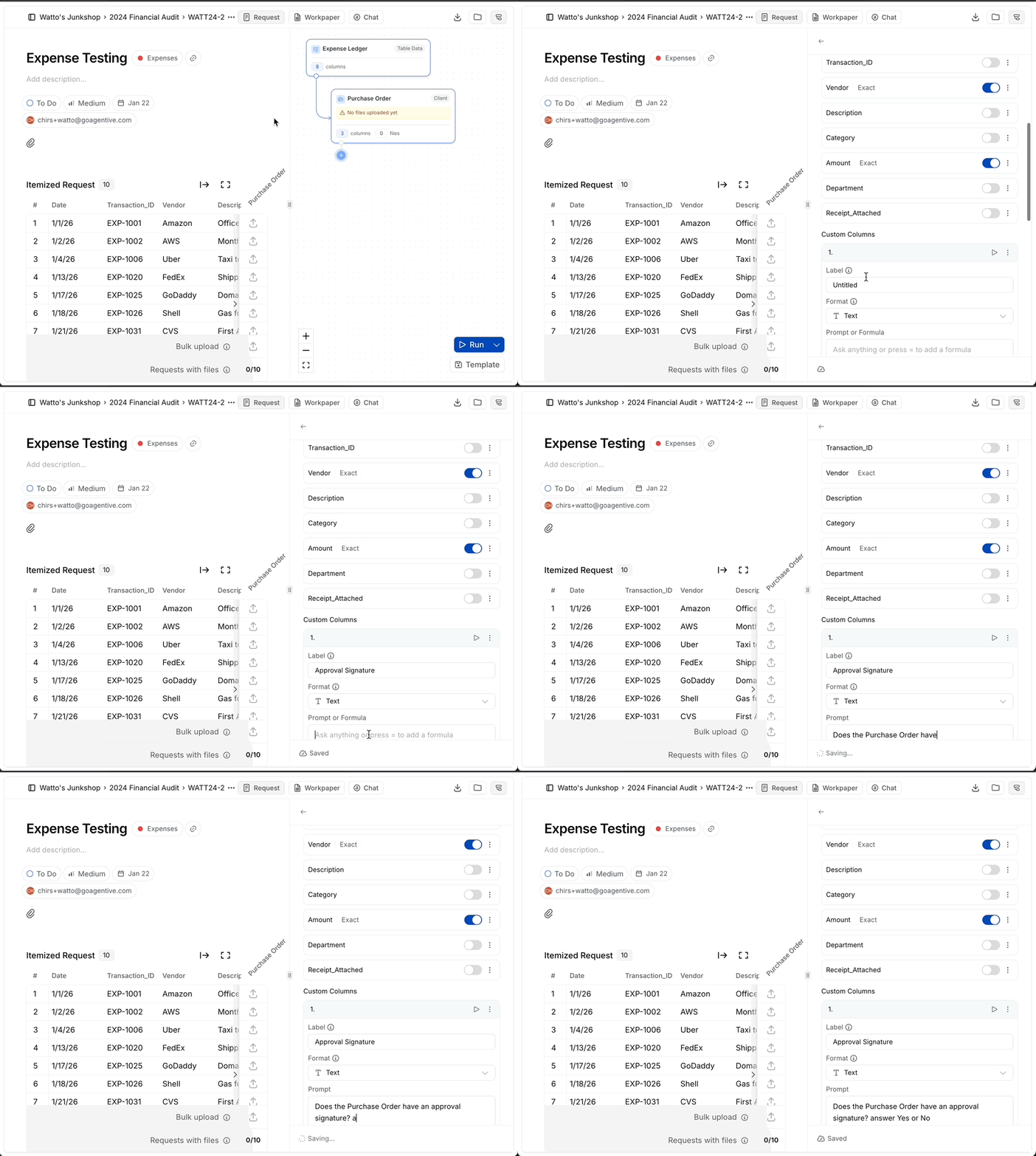
Open custom columns
- Select a document group on the workflow canvas
- Open Custom columns to review existing prompts
- Click Add AI prompt to start
Give the prompt context
Use @ mentions to reference table values:
@[Invoice Number]- Pull the invoice number from the current row@[Vendor Name]- Reference the vendor from your sample@[Engagement Period]- Include engagement details for clarity
Context helps the AI understand which specific document or transaction it's analyzing.
Name the column
Give the column a descriptive name matching the data you're extracting:
- "Invoice Total"
- "Approval Date"
- "Signature Present"
- "Line Item Summary"
Column names appear in the workpaper grid and can be referenced by formulas.
Draft the instructions
Effective prompts
Specific data extraction:
What is the total amount shown on invoice @[Invoice Number]?Date extraction:
What is the payment date? Return in MM/DD/YYYY format.Yes/No questions:
Does this document include an approval signature? Answer Yes or No.Structured lists:
List all line items on this invoice with the following format:
- Item description
- Quantity
- Unit priceClear, specific prompts with format requirements produce consistent, structured answers.
Ineffective prompts
Too vague:
Summarize this document.Problem: Doesn't specify what information to extract
No format specified:
What's the date?Problem: Could return any date format, hard to use in formulas
Multiple questions:
What is the total, who approved it, when was it paid, and what account was used?Problem: Creates one long answer instead of separate extractable values
Vague prompts produce inconsistent results that are difficult to use in automated workflows.
Test and refine
Run on sample documents
- Click the play icon next to the prompt
- AI processes the current set of matched documents
- Results appear in the grid within seconds
Review output quality
Check if answers match expectations:
- Are values in the right format?
- Is the AI finding the correct data points?
- Are answers consistent across documents?
Adjust and rerun
If results are off:
- Add more context or specificity to the prompt
- Include format requirements
- Add examples of what you expect
- Rerun to test improvements
Iterate on prompts until you get consistent, accurate results across your sample.
Prompt writing tips
Be specific
Clearly describe what to find ("approval date") instead of generic instructions ("summarize").
Point to evidence
Mention fields that confirm the answer (invoice totals, employee names, account numbers).
Set the format
Request numbered lists, specific date formats, or yes/no answers for consistency.
Start small
Test with one document before applying the prompt to hundreds of files.
Use @ mentions
Reference table values to make prompts context-aware for each row.
One question per prompt
Create separate prompts for different data points instead of asking multiple questions.
How is this guide?