Workflows
Creating Workflows
Learn how to map out evidence workflows with tables, document groups, AI prompts, and formulas.
Choose your structure
Open workflow onboarding
- Navigate to a workpaper from the engagement board
- Click the workflow onboarding button in the toolbar
- The structure decision dialog opens
Decide on table structure
With table (structured data)
When to use:
- Testing individual transactions
- Matching uploaded documents to sample selections
- Automating data extraction
- Running formulas across multiple rows
Use tables when you need to track evidence against specific sample items like invoice numbers or employee IDs.
Without table (unstructured uploads)
When to use:
- Single document reviews
- General evidence collection
- No specific matching requirements
Choose this option when you just need a clean upload area without structured testing requirements.
Adding Table Data
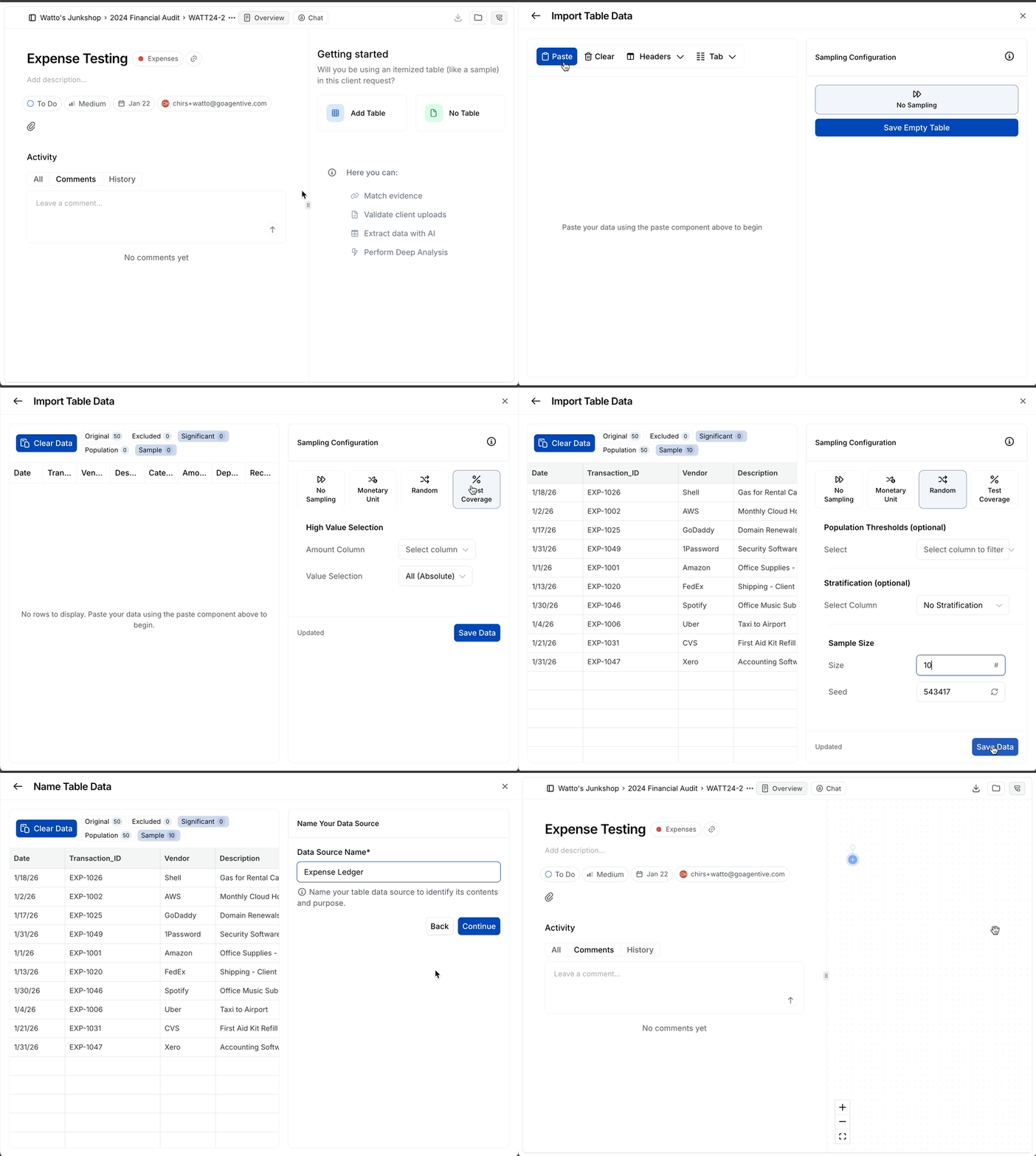
Prepare sample data
If you selected Add table:
- Paste data from Excel or upload a CSV
- Check that column headers are correct
- Continue to connect document groups
Column headers drive AI prompts and formulas. Use clear, consistent names across engagements.
Create document groups
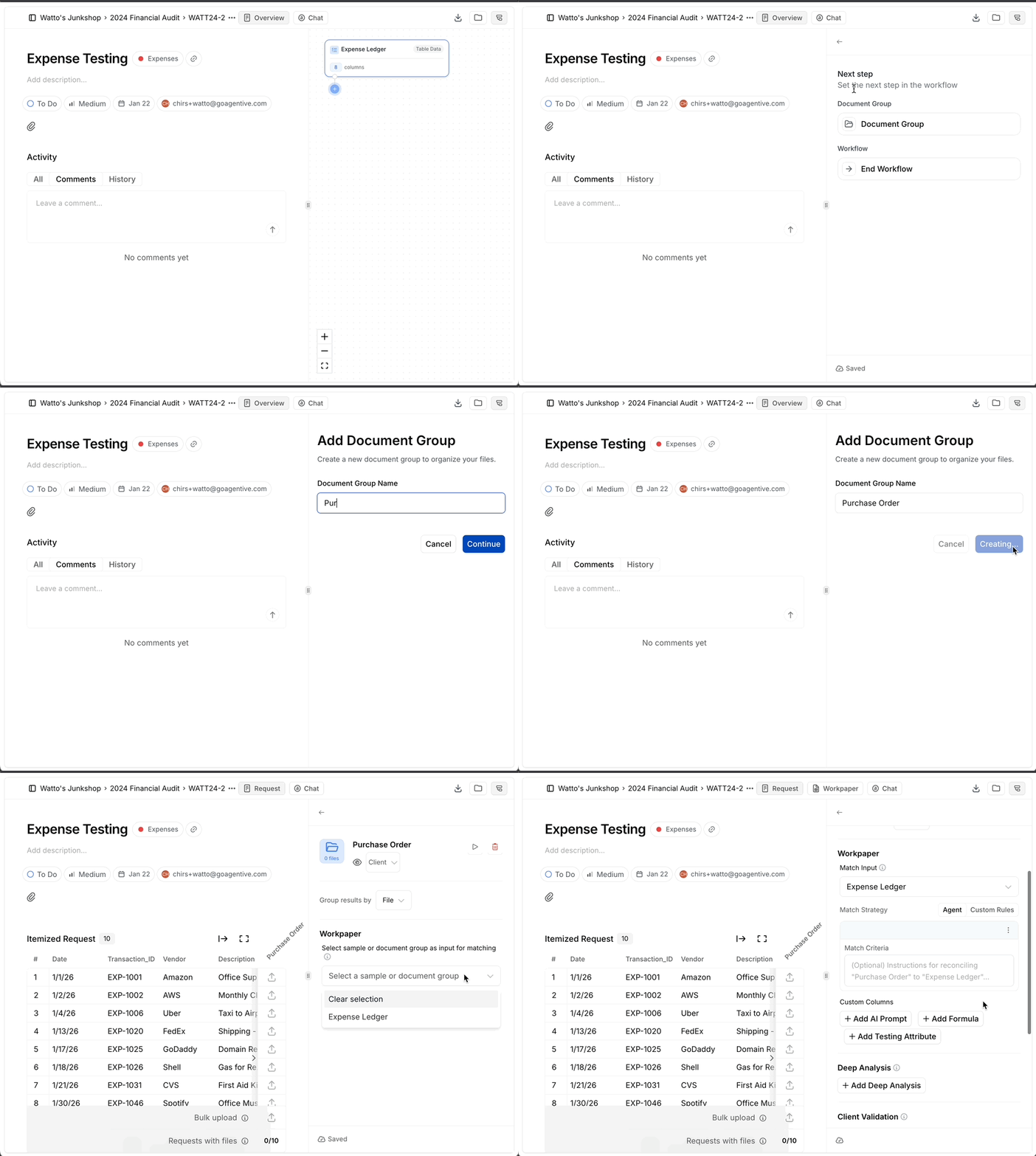
Name and configure
- Enter a descriptive name (e.g., "Vendor Invoices")
- Choose upload permissions (Auditors only or Auditors and clients)
- Link to the sample table if using structured matching
Add AI prompts and formulas
Configure AI prompts
- Open Custom columns
- Click Add AI prompt
- Write questions using @ mentions to reference table values
- Save and test on sample documents
Well-written prompts return consistent, structured answers across all matched documents.
Add calculations
- Click Add formula
- Write spreadsheet-style calculations
- Reference columns with @ mentions
- Save and run from the toolbar
Formulas run after AI prompts, so you can calculate based on extracted values.
Add Deep Analysis
- Open Deep Analysis panel
- Choose scope (all documents together or individually)
- Write the question or paste from "Ask AI"
- Run and review results with citations
How is this guide?