Document Matching
Learn how to pair sample rows with supporting files using document matching.
Document matching becomes available once your workpaper includes at least one sample table and a document group.
Before you start
Prepare your sample
Import or paste a sample table listing the items you're testing (invoices, expenses, accounts, etc.).
Create document group
- Add at least one document group to the workpaper
- Upload the evidence you expect to match
- Verify files are in supported formats (PDF, images, Excel, Word)
Files process automatically after upload. Wait for OCR to complete before running matching.
Configure document matching
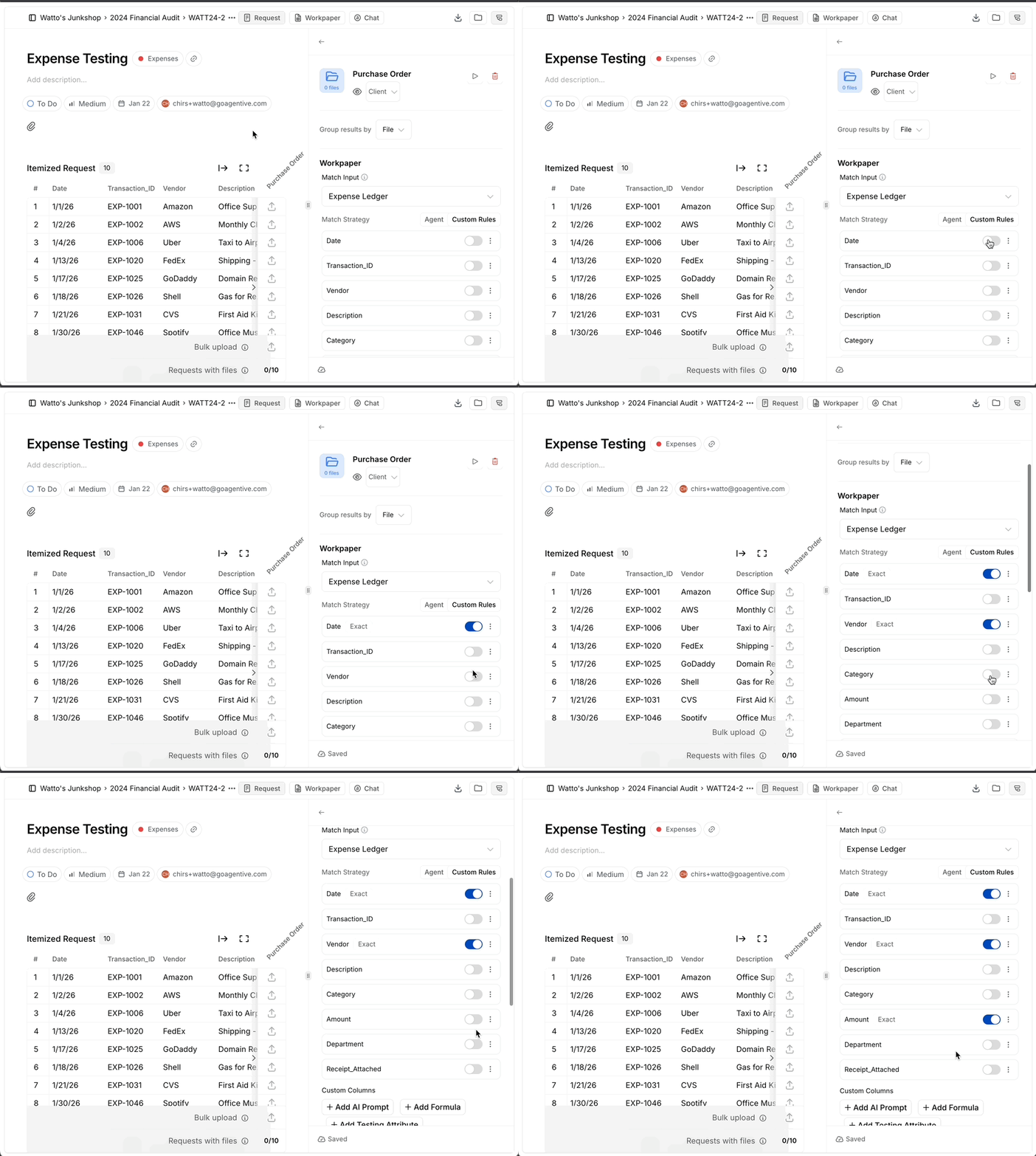
Turn on matching
- Select the document group and open Match settings
- Choose the sample table you want to match against
- Review the copied columns—these set the matching rules
The system automatically copies key columns like invoice numbers, dates, and amounts from your sample.
Fine-tune column rules
Each column has controls to refine matching:
On/Off toggle
Skip a column without deleting it from the configuration.
Mandatory Column
Only accept matches that include this column's value.
Variance
Allow small differences for numbers or dates when exact matches aren't expected.
Match Instructions
Add hints so the AI knows what to look for in documents when varience is active.
Changes save automatically. Your next run uses the latest settings.
Run document matching
Run for one group
- Click Run matching from the document group sidebar
- Agentive processes new files and compares them to your sample
- The grid refreshes once results are ready
Matching only runs when the group has new files or rule changes.
Run complete workflow
- Click Run all automations from the workflow toolbar
- Executes matching → AI prompts → formulas in sequence
- All results populate the workpaper automatically
Use this after clients upload evidence to process everything in one click.
Review and approve matches
View matched values
- Matched values appear in the grid with highlights
- Links to source documents appear in cells
- Click a cell to preview the document snippet
Approve or clear matches
Approve a match
- Review the matched document snippet
- Verify the extracted value is correct
- Click Approve to lock the match
Approved matches stay attached even after future runs, creating a stable audit trail.
Clear a match
- Open the matched cell
- Click Clear match
- The row returns to the pool for the next run
Clear matches when the AI selected the wrong document or you want to try different matching rules.
Bulk operations
- Select multiple rows in the grid
- Choose Accept all or Clear all from the toolbar
- Process many matches quickly
Bulk operations cannot be undone. Review selections carefully before applying.
Multiple document groups
Add more groups
- Use the + button on any workflow node
- Add another document group
- Connect it to a different sample or the same one
- Configure separate matching rules
View dependencies
- Hover over nodes to see which parent table they use
- The canvas shows the full workflow visually
- Track how evidence flows through multiple groups
Different document groups can match to the same sample table with different column rules.
Troubleshooting
Best practices
Start with key columns
Begin with 2-3 critical matching columns (invoice number, amount, date) before adding more.
Test on small samples
Run matching on 5-10 rows first to verify rules work before applying to hundreds of items.
Use instructions
Add column instructions when field names might appear differently in documents.
Review before approving
Always preview matched snippets to verify accuracy before bulk-approving matches.
How is this guide?