Request Overview
Understand request components, fields, and the difference between simple and itemized requests.
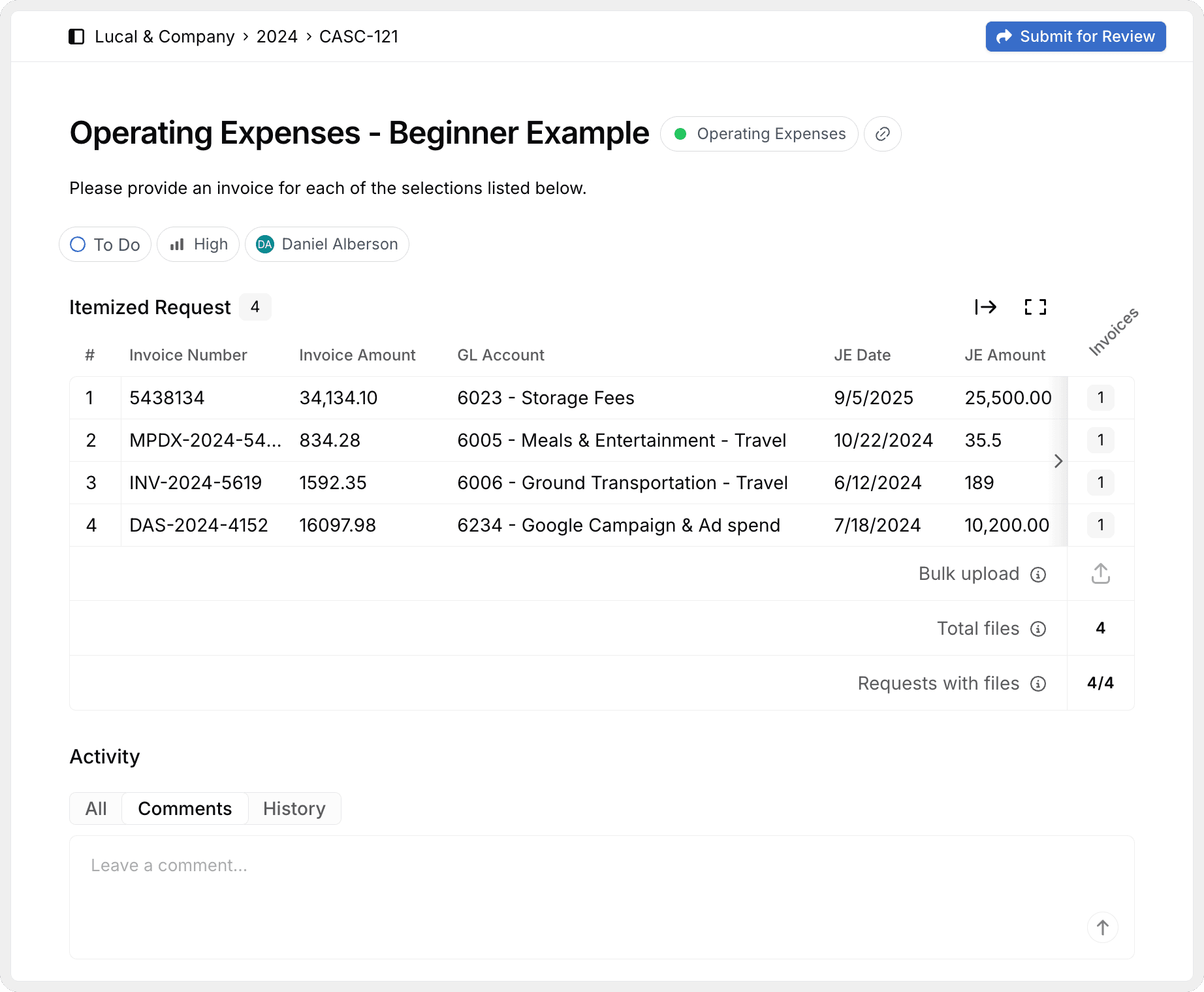
What is a Request?
A request is how your audit team asks you to provide specific documents, data, or supporting information. Each request appears in your engagement and contains all the details you need to understand what's being asked for and how to respond.
Requests are your primary workflow in Agentive. Your audit team creates them, and you respond by uploading files, adding comments, and updating status.
Types of Requests
Agentive supports two types of requests based on how the information is structured:
Simple Requests
Single document group
Upload one or more files to a single upload area. No itemized list or table structure.
General documentation
Used for policies, procedures, organizational charts, or other documents that don't require item-by-item tracking.
Example: "Please provide the employee handbook and organizational chart."
Itemized Requests
Table with selections
A structured table where each row represents a specific item requiring documentation.
Multiple document groups
Each selection row has columns for different document types (e.g., Invoice, Receipt, Contract).
Flexible upload options
Upload files individually at row/column intersections OR bulk upload by document type with automatic matching.
Example: "Please provide invoices and receipts for the following 15 vendor transactions" (table with 15 rows and columns for Invoice and Receipt).
Itemized requests with many selections benefit from bulk upload, where you upload all invoices at once and the system automatically matches them to the correct selection based on vendor name, amount, date, or other details.
Request Components
When you open a request, you'll see the following information:
Request ID
Format: A unique number prefixed by your engagement identifier (e.g., FSA-127)
Purpose:
- Uniquely identifies this request across your engagement
- Use it when communicating with your audit team about specific requests
- Appears in the top left corner of the request detail view
Title
What it is: A concise, descriptive name for what's being requested
Examples:
- "Bank Statements - All Accounts"
- "Fixed Asset Additions for 2024"
- "Vendor Invoices - Marketing Expenses"
Purpose: Quickly identify the request without reading the full description
Description
What it is: Detailed explanation of what your audit team needs
Typically includes:
- Specific documents or data required
- The scope and timeframe covered
- Any special instructions or formatting requirements
- Context for why the information is needed
Always read the full description before starting to gather documents. It often contains important details about formatting, scope, or specific requirements.
Example description:
Please provide all vendor invoices for marketing expenses during Q4 2024. Include the invoice, proof of payment (cancelled check or bank statement), and the original purchase order or authorization email for each transaction over $5,000.
Status
What it is: The current stage of the request in the workflow
Status options:
| Status | Meaning | Your Action |
|---|---|---|
| Backlog | Not yet prioritized or started | No action yet—wait for it to move to To Do |
| To Do | Ready for you to work on | Review, gather documents, and start uploading |
| In Review | You've submitted, waiting for audit team review | No action—audit team is reviewing |
| Returned | Audit team sent back for revisions | Review comments, provide additional info, resubmit |
| Done | Approved and closed by audit team | No action—request is complete! |
You can change status from "To Do" to "In Review" when you've uploaded everything requested. Your audit team will then move it to "Done" or "Returned".
How to change status: Click the status dropdown in the top right corner of the request and select the new status.
Priority
What it is: Urgency level assigned by your audit team
Priority levels:
Urgent
Requires immediate attention. Drop other work to address this.
High
Important and time-sensitive. Complete as soon as possible.
Medium
Standard priority. Address in normal workflow order.
Low
Can be addressed when time permits. Lower urgency.
Visual indicator: Color-coded badge (red = urgent, orange = high, yellow = medium, gray = low)
Use priority to focus: Filter by priority to see your most urgent work first.
Due Date
What it is: Target completion date set by your audit team
Displayed as: Calendar icon with date (e.g., "Due: Jan 25, 2026")
Importance:
- Helps you prioritize work
- Red indicator if overdue
- Use filters to see overdue and upcoming due dates
If you can't meet a due date, communicate early via comments. Your audit team can adjust deadlines or help prioritize.
Category
What it is: The audit area or functional grouping for this request
Common categories:
- Revenue
- Expenses / Operating Expenses
- Cash & Investments
- Accounts Receivable
- Accounts Payable
- Inventory
- Fixed Assets / Property & Equipment
- Payroll
- Equity / Stockholder's Equity
- Debt / Liabilities
Purpose:
- Organizes requests by financial statement area or audit focus
- Helps you filter and focus on related requests
- Makes it easier to delegate to team members with specific expertise
Assignee
What it is: The person on your team responsible for this request
How it works:
- You can assign requests to team members on your side
- Assignee receives notifications about the request
- Helps distribute workload across your team
- Can be reassigned at any time
Best practice: Assign based on expertise (e.g., AP requests to your AP manager, payroll to your payroll specialist)
Created Date
What it is: When the request was first created
Format: Timestamp (e.g., "Created: Jan 10, 2026 at 2:30 PM")
Use: Understand how long a request has been open or track when new requests were added
Updated Date (Last Modified)
What it is: When the request was last changed
Tracks changes to:
- Status updates
- File uploads
- Comments added
- Field modifications
Use: See recent activity at a glance
Where to Find Request Information
All request components are visible in the request detail view:
- Top bar: Request ID, Status dropdown, Priority badge, Due date
- Header section: Title, Description, Category tag
- Main area: Files, itemized selections (if applicable), upload areas
- Bottom section: Comments and activity timeline
Quick Actions
From the request detail view, you can:
Change status
Click the status dropdown to move the request through the workflow.
Assign to teammate
Click the assignee field to delegate to someone on your team.
Upload files
Use the upload area to attach supporting documents.
Add comments
Scroll to Comments section to communicate with your audit team.
View activity
Check the Activity tab to see the complete history of changes.
Next Steps
Now that you understand request components, learn how to respond:
Uploading Files
Upload documents for simple and itemized requests, including bulk upload options.
Comments & Activity
Communicate with your audit team, view history, and use @mentions.
Track with Board View
Use the visual board to see all requests organized by status or category.
Filter Requests
Focus on specific requests using filters for status, priority, or due date.
How is this guide?