Selection Request
Upload and organize documents for table-based requests with automatic matching and bulk upload.
Upload supporting documents to selection requests that track multiple items in a table structure. Each row represents a specific selection that needs documentation, and each column represents a document type.
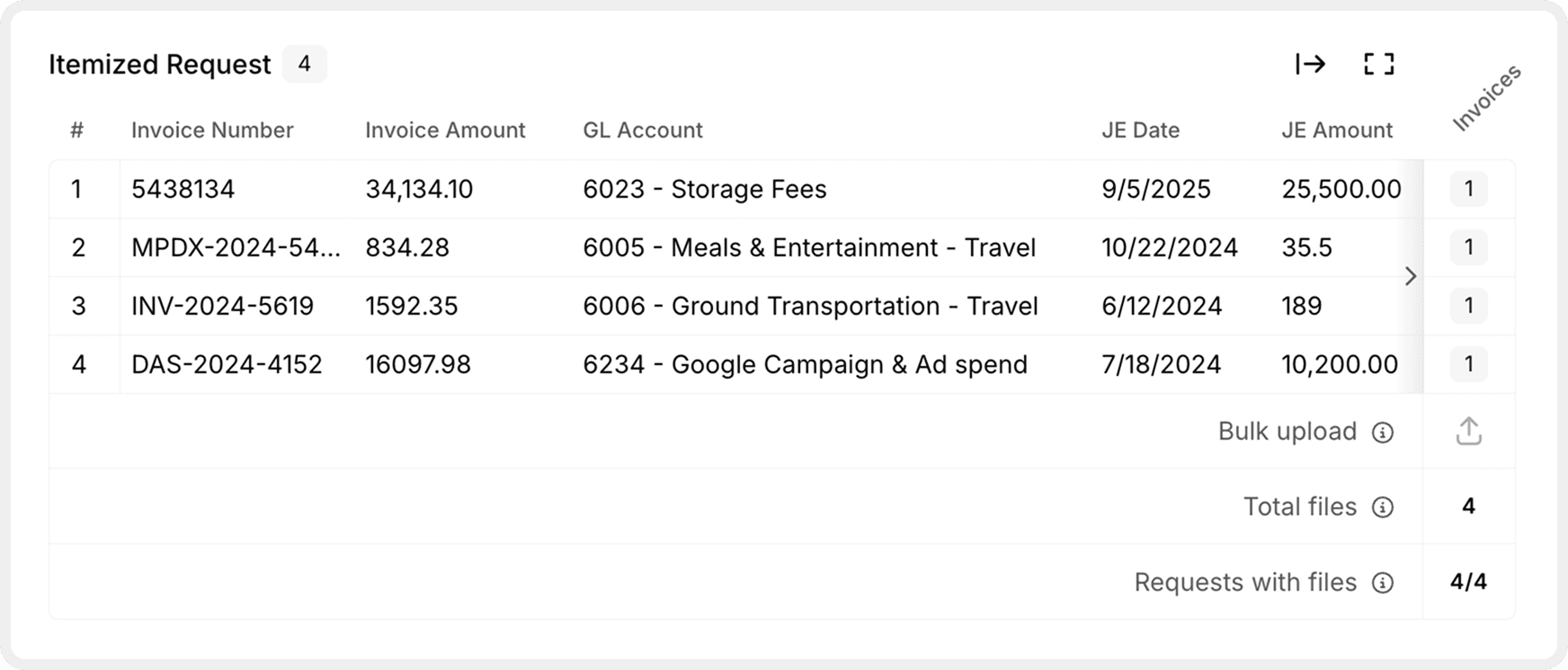
What are itemized requests?
An itemized request organizes information in a table. Each row is a specific item (selection) that requires supporting documentation, and each column is a document type (group) needed for that item.
You'll recognize itemized requests by:
- Table structure with rows and columns
- Selection numbers in the leftmost column
- Detail columns describing each item
- Document group columns on the right for uploads
- Visual indicators showing completion status
Common examples:
- Invoice verification (invoice + receipt for each transaction)
- Expense documentation (receipt + approval for each expense)
- Contract review (contract + addendum for each agreement)
- Sample testing (multiple document types for selected items)
[!NOTE] Working with simple requests? If your request has a single upload area without a table, see Uploading Files.
Understanding the table
The table has three main areas that work together to organize your documentation.
Selection # Column
The leftmost column shows a sequential number for each item in the request. Use these numbers when adding comments to reference specific items:
"Selection #7 (ABC Corp, $5,420) - receipt unavailable, included cancelled check instead."
Detail Columns
The center area contains information that identifies each selection. Your audit team provides this data to help you locate the correct documents.
Typical detail columns:
- Vendor or customer name
- Transaction date
- Amount
- Invoice number
- Account classification
Example row:
Selection #7 | Vendor: ABC Corp | Date: 10/15/24 | Amount: $5,420 | Account: Office SuppliesThese details tell you exactly which invoice to upload. Detail columns are also used by automatic matching when you bulk upload files.
Document Group Columns
The rightmost columns (pinned for easy access) represent the types of documents needed. Each column is an upload area where you attach files.
Common document groups:
- Invoice
- Receipt
- Purchase Order
- Contract
- Approval
Visual indicators show which cells have documentation:
- ✓ Checkmark - Document uploaded
- Empty - Document still needed
- Thumbnail - Image preview of uploaded document
Upload methods
Choose the method that fits your workflow. You can mix methods within the same request.
Individual Upload
Upload documents one at a time to specific table cells. Use this method when you have a small number of items or want precise control over placement.
Find the cell
Locate the selection row, then click the cell where the row intersects with the document group column.
Upload
Browse your computer, select the document, and it uploads immediately. A checkmark or thumbnail appears in the cell.
Best for:
- Small requests (5 or fewer selections)
- Documents already organized by transaction
- When you need precise control over placement
- Uploading different document types at different times
Bulk Upload with Automatic Matching
Upload all documents of one type at once. Agentive automatically matches them to the correct selections using the detail columns.
Click Bulk Upload
Find the Bulk Upload button at the bottom of the request or in the document group column header.
Select document group
Choose the document type (Invoice, Receipt, Contract, etc.) to specify which column to populate.
Upload files
Browse and select all files for that document type. You can select dozens or hundreds at once using Ctrl+Click or Cmd+Click.
Review matches
Agentive analyzes each file and proposes matches based on the detail columns:
- ✓ Confirmed - High confidence match, no action needed
- ? Suggested - Lower confidence, review recommended
- ! Unmatched - No match found, manually assign to correct row
Accept matches
Confirm the matches. Files populate the appropriate cells in the table.
Best for:
- Large requests (10+ selections)
- Documents organized by type in folders
- Files with identifiable information (vendor names, dates, amounts)
- Saving time on repetitive uploads
How automatic matching works
When you bulk upload, Agentive uses intelligent analysis to pair files with selections.
Matching process
- Text extraction - Reads text from PDFs and images using OCR
- Pattern recognition - Identifies vendor names, dates, dollar amounts, and invoice numbers
- Detail comparison - Compares extracted data to detail columns in the table
- Confidence scoring - Assigns confidence levels to each potential match
Improving match accuracy
Better file naming and organization improve automatic matching:
Good filenames:
ABC_Corp_Invoice_Oct2024.pdfVendor_DocType_Identifier.pdf- Include vendor name, date, or amount
Poor filenames:
Scan001.pdfDocument.pdfIMG_1234.jpg
The system can still match files with poor names using OCR, but clear filenames increase accuracy and confidence scores.
Tracking progress
Monitor your upload progress with the file summary at the bottom of the request.
File summary displays:
- Bulk Upload Files - Files uploaded but not yet matched to rows
- Total Files Uploaded - Complete count of all attached documents
- Selections with Documentation - Progress indicator (e.g., "12 of 15 items complete")
Use this summary to quickly see whether all items have the required documentation or if uploads are still needed.
[!TIP] Before marking a request complete, scan the table visually. Missing uploads are easy to spot as empty cells without checkmarks.
Marking complete
Once you've uploaded all requested documents, update the request status to notify your audit team.
Verify completeness
Confirm all required cells have checkmarks and file names are descriptive.
Add context (optional)
Provide explanations for exceptions or substitutions:
"All invoices and receipts uploaded. Selection #7 receipt unavailable—included cancelled check as proof of payment."
Change status
Click the Status dropdown (top right) and select In Review.
The request moves to the "In Review" column and your audit team receives a notification.
Next steps
- Review Upload Tips & Troubleshooting for best practices
- See Uploading Files for simple request uploads
How is this guide?