General Request
Fulfill audit requests by uploading requested files.
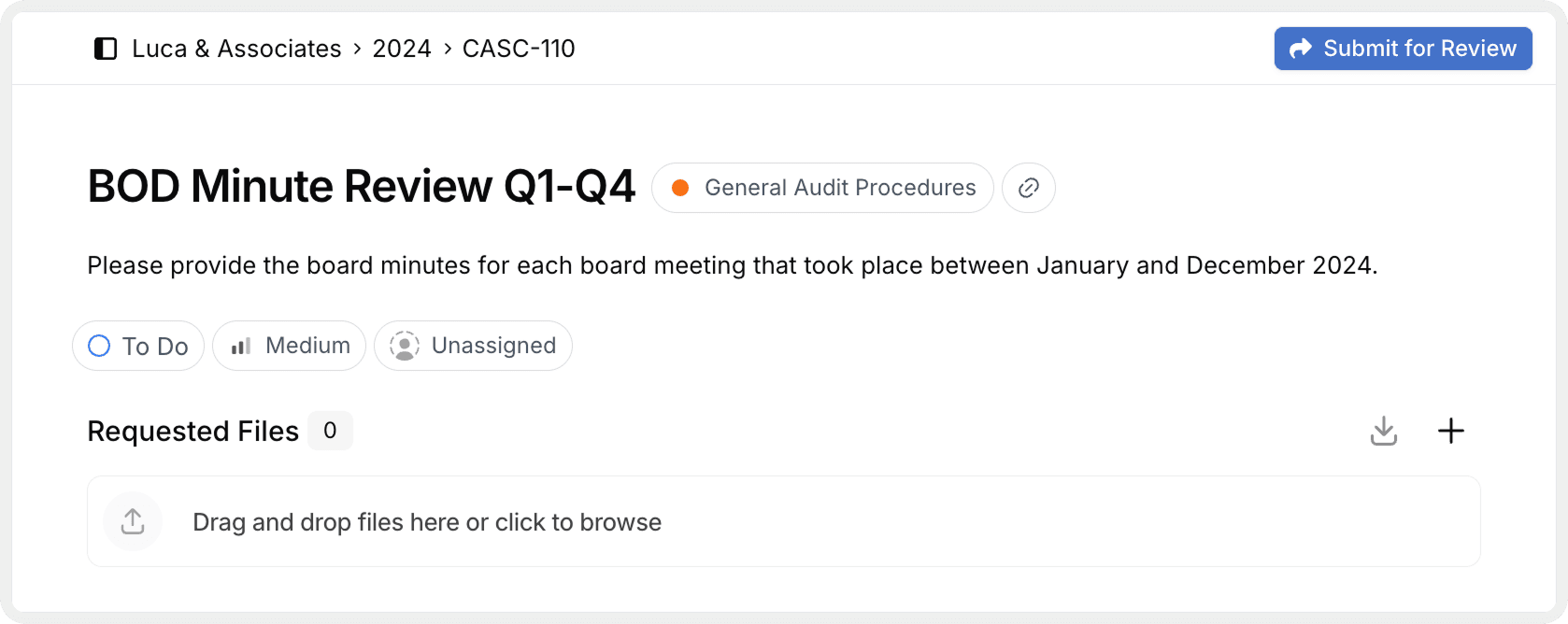
What are simple requests?
A simple request is a task that requires one or more documents but doesn't need individual tracking for each item. The request has a single upload area where you drop all required files.
You'll recognize simple requests by:
- Single upload zone in the center of the request
- No table or itemized list structure
- General document requirements rather than specific selections
Common examples:
- Company policies and procedure documents
- Organizational charts
- Employee handbooks
- Signed agreements
- Supporting documentation that doesn't need item-level tracking
[!NOTE] Working with itemized requests? If your request shows a table with rows and columns, see Working with Itemized Requests.
Uploading files
Open the request
Click the request from your Board, List, or Activity view.

Upload your files
Drag and drop: Drag files from your computer into the upload area.
Click to browse: Click Upload, select files, and click Open.
You can upload multiple files at once. Files begin uploading immediately and appear in the Files section with names, sizes, and timestamps.
Add more files
Upload additional files anytime using the same method. There's no limit to the number of files you can attach.
Marking complete
Once you've uploaded all requested documents, update the request status to notify your audit team.
Verify completeness
Confirm all required documents are uploaded with clear, descriptive file names.
Add context (optional)
Add a comment if you need to explain anything about your submission:
"All policy documents uploaded. The 2023 handbook is still being finalized, so I've included the 2022 version with an addendum."
Change status

Click the Submit for Review button (top right).
Your audit team receives a notification and the request moves to the "In Review" status. You can use the same button to return the request to "To Do" if you need to make changes.
Next steps
- Learn about Working with Itemized Requests for table-based uploads
- See Upload Tips & Troubleshooting for best practices and common issues
How is this guide?