Start Guide
Gain a basic understanding of Agentive so you can set up client engagements, run PBC, and automate evidence workflows.
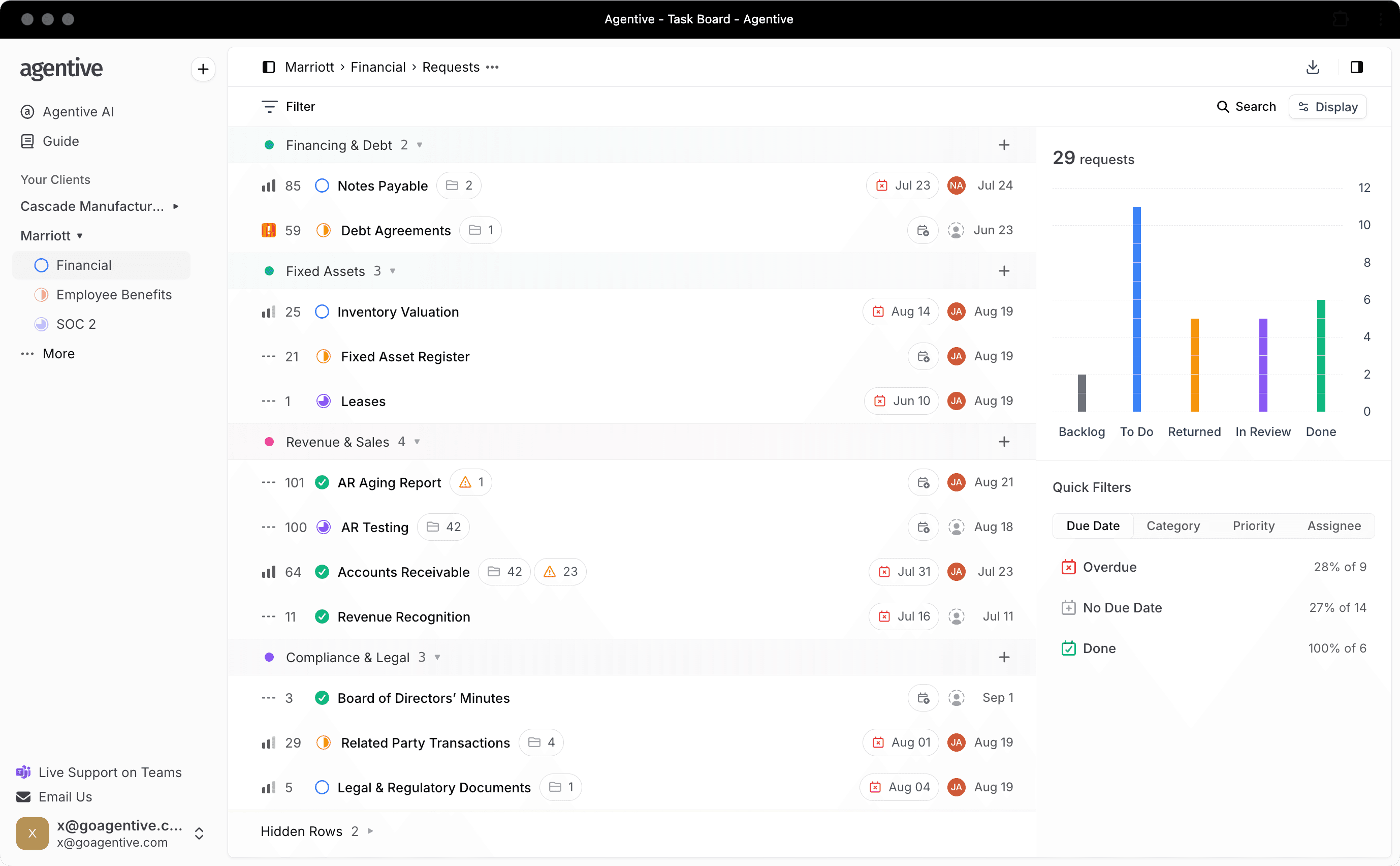
Intro (what Agentive is for auditors)
Agentive is your engagement workspace for PBC + evidence + audit trail + workpaper automation. You'll use it to:
- create and publish client requests
- track status, ownership, and deadlines
- receive and review uploads
- automate matching + extraction + checks in workpapers
- export evidence-backed deliverables (including Excel exports when needed)
Visibility boundary: Clients only see what you publish. Internal work stays private to the audit team.
The mental model (2 minutes)
Agentive is organized as:
- Firm → your audit firm workspace (members, domains, branding)
- Client → the organization you serve
- Engagement → the audit for a specific period/scope
- Requests → client-facing evidence asks (PBC)
- Workpapers → auditor workflows to match evidence, extract data, and validate results
First success: set up an engagement and send your first request list
1) Set up your firm workspace (admins)
Add internal email domains so teammates auto-land in the correct firm workspace, invite your team, and confirm branding.
You'll do this once per firm, not per engagement. See Firm Management.
2) Create a client and an engagement
Create the client organization, then create an engagement for the audit period (e.g., "FY2025 Financial Statement Audit").
Start here: Creating Clients and Creating Engagements.
3) Create your request list (PBC)
Create 5–10 requests to start (or import your full list from Excel).
4) Publish to the client
Publish only when the request wording and ownership are ready. Clients should see clean, actionable asks.
Tip: keep drafts internal until titles, due dates, and assignees are final.
5) Run the engagement day-to-day (views + activity)
Use views depending on what you're doing:
- Board for workflow management (moving items through statuses)
- List for detailed review across many requests
- Activity for audit trail + daily recap + coordination
Level up: automate workpapers (when you need structured testing)
Workpapers are where Agentive becomes "audit-ops," not just PBC tracking.
A typical automation flow is:
1) Create a workflow
Choose "No table" for single-document reviews, or add a table when you're testing selections.
See Creating Workflows.
2) Match evidence to selections
Automatically pair uploaded evidence with sample rows. If automation misses, you can override manually.
3) Extract the fields you need
Use prompts to pull specific values into structured columns (dates, amounts, approvals, terms).
See AI Prompts.
4) Compute checks and flags
Use formula columns for totals, variances, thresholds, and "needs review" logic.
See Formula Columns.
5) Use Deep Analysis for narrative documents
For contracts, minutes, policies, and long-form docs, use Deep Analysis for cited review.
See Deep Analysis.
Exports and deliverables
When you need to package workpapers with supporting evidence in a reviewer-friendly format, use the Excel Add-in export flow.
See Install Excel Add-In.
Go deeper (optional)
Templates
Standardize repeatable workflows across the firm.
Request Validation
Catch wrong uploads early and reduce back-and-forth.
Roll Forward
Reuse last year's structure in a new period.
How is this guide?